


Nothing disrupts your workflow like having untrusted and harmful applications running on your device. It's almost an equivalent of what we were taught in the early school days — one rotten tomato ruins the bunch.
Luckily, Windows 11 ships with a handful of security features specifically designed for this scenario. I recently talked about the operating system's Smart App Control, which is designed to block untrusted or potentially harmful applications from running on your device.
Today, we'll be taking a closer look at Windows Sandbox. Microsoft describes the security as "a lightweight virtual machine," which provides users with an isolated desktop environment for safely running apps. It's specifically designed for testing, debugging, interacting with unknown files, and even experimenting with tools.
What's more, Windows Sandbox leverages new container technology in Windows to provide security, density, and performance, which would be a hard combination to achieve in conventional virtual machines.
It's worth noting that installing apps within Windows Sandbox's threshold significantly reduces potential harm from untrusted apps. This is because it isolates the harmful software from the host machine using hypervisor-based virtualization.
As a disposable virtual machine (VM), Windows Sandbox ensures reboot persistence, quick launch times, and a lower memory footprint compared to full VMs. Its one-click setup simplifies the user experience.
Microsoft
With Windows Sandbox at your disposal, you can easily download an executable file without worrying about how it will affect your device's security. It also comes in handy when you want to perform a clean install of Windows without setting up a virtual machine.
How does Windows Sandbox work?
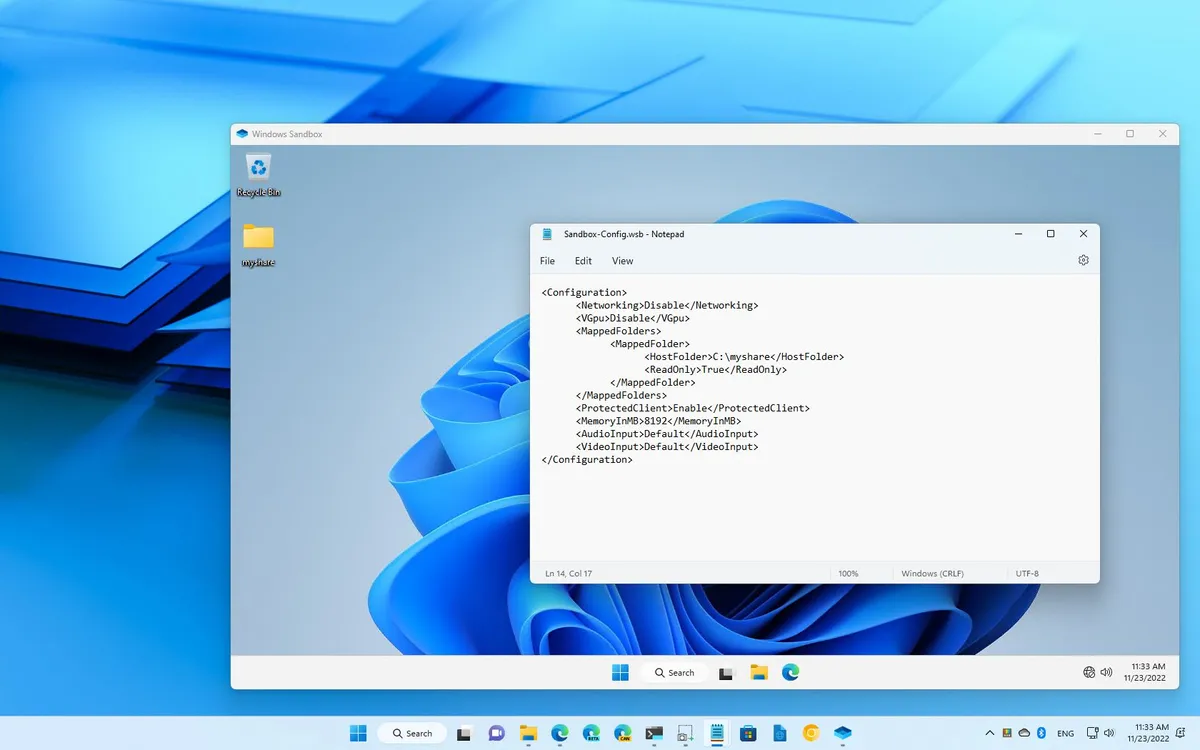
Think of Windows Sandbox as an isolated, temporary desktop environment where you can freely run untrusted software without having to worry about its impact on your Windows 11 PC.
For context, Windows Sandbox will delete all software and files installed every time you close it. As such, each platform launch will provide you with a clean slate to run untrusted software and more. It's worth noting that host-installed apps won't be available when you're using Windows Sandbox, which will ensure that your sensitive files and information are safe. This means you'll need to explicitly install the apps you want to use in the Windows Sandbox.
However, "starting with Windows 11, version 22H2, data persists through restarts initiated within the sandbox, useful for applications requiring a reboot," Microsoft noted.
The platform ships with the features highlighted below:
- Part of Windows: Everything required for this feature is included in the supported Windows editions like Pro, Enterprise, and Education. There's no need to maintain a separate VM installation.
- Disposable: Nothing persists on the device. Everything is discarded when the user closes the application.
- Pristine: Every time Windows Sandbox runs, it's as clean as a brand-new installation of Windows.
- Secure: Uses hardware-based virtualization for kernel isolation. It relies on the Microsoft hypervisor to run a separate kernel that isolates Windows Sandbox from the host.
- Efficient: Takes a few seconds to launch, supports virtual GPU, and has smart memory management that optimizes memory footprint.
How to get started with Windows Sandbox in Windows 11

While we already have a dedicated guide to walk you through the entire process step-by-step, here's a quick rundown of what you need to do to set up Windows Sandbox and start testing untrusted software:
- Open Start.
- Search for Windows Sandbox, right-click the top result, and select the Run as administrator option.
- Open File Explorer on your computer.
- Open the folder with the untrusted app to test.
- Select the executable and click the Copy button from the command bar.
- Right-click on the desktop and select the Paste option to transfer the installer in the Windows Sandbox desktop.
- Double-click the installer (.exe, .msi, or any other) to begin the installation.
- Continue with the on-screen directions to complete the installation.
Windows Sandbox is a safe bet for running untrusted software, which takes a couple of seconds to start running. What's more, it also optimizes its power consumption because it is aware of the host's battery state.

