Windows Central Verdict
Surface Laptop Ultra is Microsoft's most powerful PC it's ever shipped, debuting with a new silicon platform, first-gen Mini LED screen, and one of the best trackpads I've ever used. But with just okay battery life, a less than class leading display panel, and a high price tag to boot, this isn't the laptop for everybody.
Reasons to buy
- +
Premium build quality
- +
High-resolution screen
- +
Excellent keyboard
- +
Haptic trackpad is amazing
- +
Good sound quality
- +
Useful ports selection
Reasons to avoid
- -
Mini LED not best-in-class
- -
No presence sensing features
- -
Okay battery life
- -
Currently missing all Copilot+ features
Why you can trust Windows Central Our expert reviewers spend hours testing and comparing products and services so you can choose the best for you. Find out more about how we test.
Microsoft is finally ready to take on the MacBook Pro with the new Surface Laptop Ultra. From pricing to specs and design, Surface Laptop Ultra was inspired by MacBook Pro, and that's not necessarily a bad thing.
Unlike most Surface PCs we see ship these days, the Surface Laptop Ultra is a lot of firsts for Microsoft. It's the first ultra-class Surface Laptop, designed from the ground up to compete squarely with high-end professional creator or developer mobile workstations.
It's also the first Surface to ship with a new silicon partner in the way of NVIDIA and the RTX Spark, which the entire ecosystem is rallying around to give Windows on Arm a shot in the arm. It's also Microsoft's first ever Mini LED screen, and the world's first laptop to ship with magnetic USB-C charging.
What I find fascinating about Surface Laptop Ultra however is that it exists because Microsoft's own developers and engineers wanted it. They built this laptop for themselves. It feels like the company got tired of looking over the fence at the MacBook Pro, and decided "why don't we just make our own version of that?"
It really is Microsoft's most powerful and most capable Surface PC ever, and a great stage for Windows. But that doesn't necessarily mean it's the best Surface PC for everyone. I've been testing the laptop over the last 8 days, and here are my thoughts on Microsoft's new flagship computer.
This review was made possible thanks to a review unit supplied by NVIDIA & Microsoft. Neither company had editorial input and did not see the contents of this review prior to publication.
Price & Availability

Surface Laptop Ultra is Microsoft's flagship and most powerful Windows PC. It can be configured with up to 128GB RAM, and ships with NVIDIA's new RTX Spark SoC. It's great for creative workflows and software development, and those who want to run local AI and LLMs directly on their device.
Surface Laptop Ultra is Microsoft's most expensive Surface Laptop to date. It starts at an eyewatering $2,599 for the entry-level configuration with 24GB of RAM, 512GB SSD storage, and an 18-core RTX Spark with 5,120 GPU cores. That's an expensive laptop, and it only gets worse the higher you climb up the specs ladder.
The model I've reviewed is the very top end configuration, with a crazy 128GB RAM, 1TB SSD, and a 20-core RTX Spark with 6,144 GPU cores. That model will set you back $5,899, which at these prices basically makes this a $6,000 laptop. That's an insane amount of money to spend on a laptop, but this configuration only really exists for professionals who need the extra power to run local agents and data crunching.
For video creators, gamers, and prosumers, you'll be more than well served with the lower tier models with 24-32GB RAM. All models come with the same mini LED screen, speaker setup, ports, keyboard, and trackpad. It's also available in Platinum or Nightfall colorways (aka, silver and black.)
Category |
Specs |
|---|---|
Processor |
NVIDIA RTX Spark™ N1X (18-core CPU, 5,120-core GPU) NVIDIA RTX Spark™ N1X (20-core CPU, 6,144-core GPU)
|
Graphics & AI |
NVIDIA Blackwell RTX GPU (5,120 cores or 6,144 cores) NVIDIA NPU (up to 1 petaflop of FP4 AI compute; runs up to 120B parameter models locally)
|
Unified Memory |
24 GB, 32 GB, 64 GB, or 128 GB LPDDR5x unified memory |
Storage |
512 GB removable PCIe Gen 4 SSD 1 TB or 2 TB removable PCIe Gen 5 SSD
|
Display |
Size: 15-inch PixelSense™ Ultra touchscreen display Brightness: SDR up to 1,000 nits (typical), HDR up to 2,000 nits peak luminance Optimised for touch interaction
|
Operating System |
Windows 11 Home (24 GB unified memory models) Windows 11 Pro (32 GB, 64 GB, and 128 GB models)
|
Ports & Connectivity |
2 × USB-C® / USB4® 1 × USB-C® / USB4® with Magnetic Connect 1 × HDMI 2.1b 1 × USB-A 3.1 1 × Full-size SD card reader 1 × 3.5 mm headphone jack
|
Wireless |
Wi-Fi 7, Bluetooth 5.4 |
Camera & Audio |
1080p Full HD front-facing camera |
Battery Life |
Up to 15 hours of local video playback Up to 12 hours of active web usage
|
Power Supply |
Requires USB PD 115W–140W charging |
Weight & Dimensions |
Weight: 2.0 kg (4.41 lbs) Chassis: Sub-18 mm thickness
|
Colours |
Platinum, Nightfall |
Base Price |
Starting at $2,599 |
Design & Ports

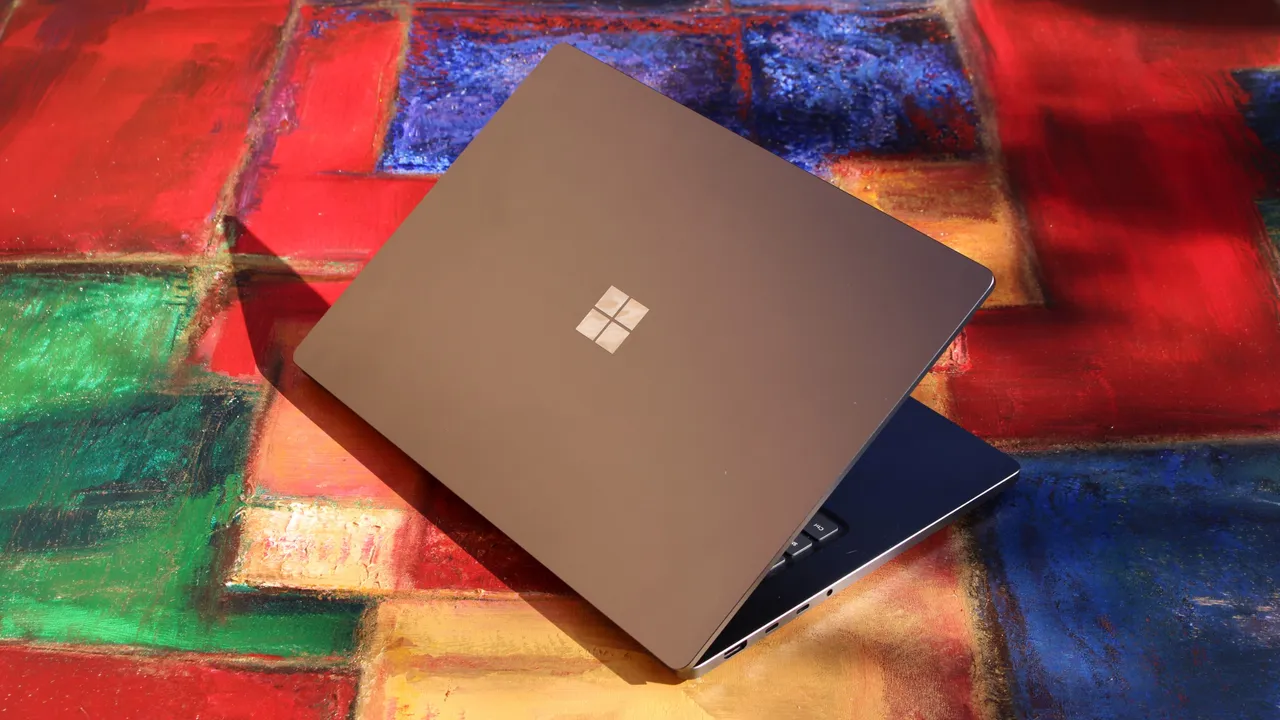
We have to start with how this thing looks, and we do need to address the fruit-shaped elephant in the room. Yes, Surface Laptop Ultra looks an awful lot like a MacBook Pro. I wouldn't blame the layman for even thinking it was a MacBook Pro from a distance. The square edges, large trackpad, and minimalist design echo the MacBook Pro from pretty much every angle.
But I'm not here to tell you that's a bad thing. The MacBook Pro is a beautiful device, which is to say Surface Laptop Ultra is also very beautiful. In fact, I think it even improves upon the MacBook Pro's design in subtle ways. The keyboard deck isn't surrounded by a plastic bezel like on MacBook Pro, instead it's softly indented into the metal keyboard deck which looks lush and seamless.
The corners on Surface Laptop Ultra are also a little rounder than the MacBook Pro, a design choice that trickles down from the corners of the chassis to the keys on the keyboard, and corners on the trackpad. It's an entirely consistent and well thought out design, which I highly appreciate.
Microsoft also doesn't suffer from the godawful notch that you'll find on a MacBook Pro. Surface Laptop Ultra's display bezels are uniform along the left and right, and slightly thicker on the top to accommodate the Windows Hello IR face unlock sensors, which are much better than a fingerprint reader.
I should also mention that the display hinge on this laptop is perfectly tuned. It opens with one finger, and is perfectly balanced to provide a satisfying level of friction as you open and close it. It's also rock solid when typing, meaning it doesn't wobble around at all when on a desk.
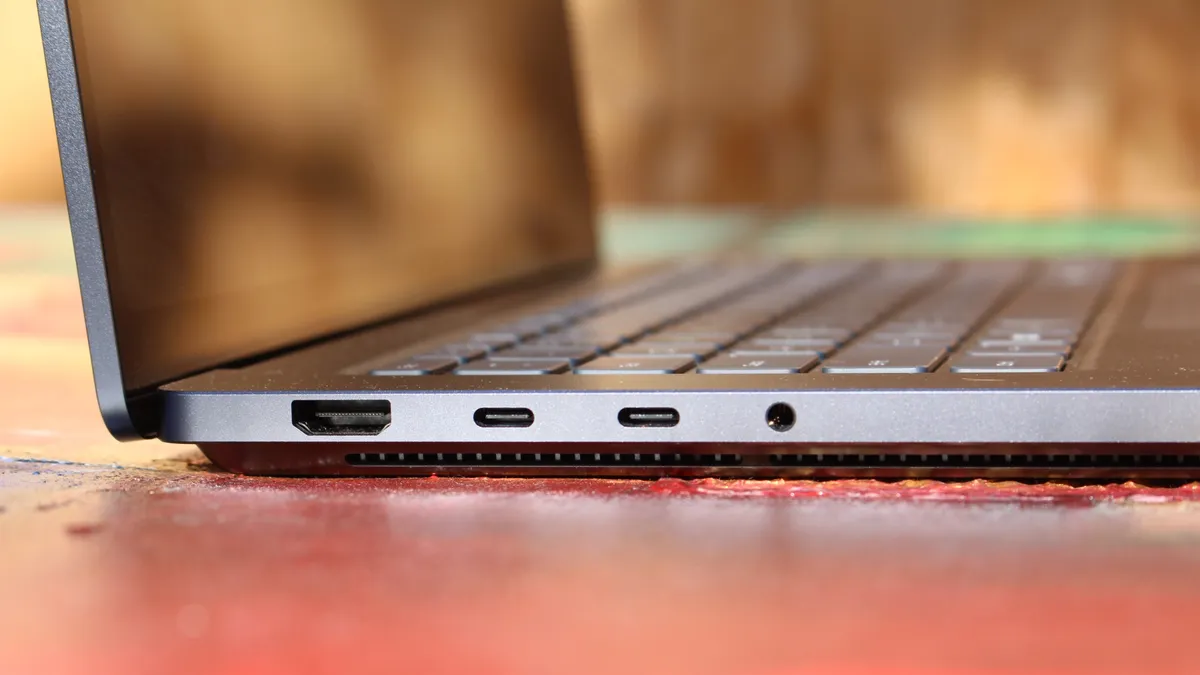
The port selection is good enough. It features three USB-C ports, a USB-A port, a 3.5mm audio jack, HDMI 2.1, and a full-sized SD card reader. Of course, the star of the show in the ports department is Microsoft's clever magnetic USB-C port, which replaces the proprietary Surface Connect charge port found on older Surface Laptops.

It's great to see a laptop manufacturer attempting to innovate and improve on the universal USB-C standard. Here, we have a USB-C port that is compatible with all your USB-C peripherals, but it's also magnetized, and with the included charging cable, magnetically snaps to the device just like Apple MagSafe, while using the same universal USB-C port.
How did Microsoft do this? Well, most of the innovation is actually on the cable side. On the laptop itself, the only real change is that the USB-C port is slightly wider at its opening, but the rest of the USB-C port itself is typical in its design. Microsoft placed magnets on either side of the port, and redesigned the USB-C connector that's attached to the cable to allow for the magnetic connection to be seamless.
The cable's male USB-C end is shallower than a normal USB-C connection. This allows for it to connect to the USB-C port without clicking in, which is what locks a cable to a USB-C port normally. Instead, the magnets hold it in place, which enables the breakaway design that differentiates this USB-C port from the rest.

That does mean the USB-C cable that comes included only works with Surface Laptop Ultra, and only in this particular port. Microsoft realized this would be a problem, and designed the power brick that comes with Surface Laptop Ultra in a way that allows the magnetic cable to attach to the brick instead. The other end of the charging cable is a normal male USB-C end, which connects to any USB-C port you want.
So you can still use the Surface Laptop Ultra's power brick and cable on any device or any port you like, you just have to plug the magnetic end into the power brick first. It's a genius design, and proves that Microsoft really thought of everything when it comes to this unique magnetic USB-C experience. I love it, and I hope to see it on more laptops in the future.
Surface Laptop Ultra is available in just two colorways: Platinum and Nightfall. To me, I think the Platinum version looks the nicest, but the Nightfall version looks clean too. The good news is the dark color does a relatively good job at fending off fingerprints thanks to an anti-fingerprint coating that has been applied to the chassis.
Display & Features

Surface Laptop Ultra ships with Microsoft's first ever mini-LED display, which delivers better contrast and brighter peak brightness over your standard LCD that has been found in all other Surface Laptops to date. Unlike an LCD, the Surface Laptop Ultra's mini-LED screen packs 1,344 local dimming zones, which allows the laptop to dim darker areas of the screen that don't need as much light.
This number is not as high as the mini-LED screen on the MacBook Pro, and this results in a bit of blooming around bright elements on a dark background. If you use Windows in light mode, this will almost never bother you. But in dark mode, in a dimly lit environment, it becomes quite a bit more apparent.
The backlight also takes a fraction of a second to keep up with what's going on on your screen. If you move a bright window around on a dark background, you'll notice the backlight brightening and dimming around the edges of the window. This gives off a slight ghosting effect which degrades the 120Hz refresh rate somewhat. It isn't noticeable at all in light mode, however.
This all leads me to say I wish Microsoft had opted for an OLED panel on the Surface Laptop Ultra. I've been daily driving OLED displays for the better part of a year now, and a mini-LED panel just isn't a vibrant or contrasty as an OLED display can be. The mini LED display is good, but not the best on the market, and it's certainly no OLED.
Microsoft tells me it opted for mini LED over OLED primarily for the brightness and efficiency gains. At 2,000 nits peak brightness, it is the brightest screen ever put on a Surface. But Tandem OLED displays are also very capable of reaching similar peak brightness levels these days, and so I feel the benefits of a mini LED screen don't carry much weight here.
If you're coming from a standard LCD, the mini LED screen will be nothing but an upgrade to you. It's color accurate, very bright, and its high resolution and 120Hz make reading text and scrolling webpages look and feel great. But if you're coming from a MacBook Pro mini LED screen, or an OLED display, you will notice the downgrade in contrast and more noticeable blooming.
The display is also a touch screen, which is the case on pretty much all Surface PCs since the line began in 2012. Microsoft truly believes that touch has a place on the laptop form factor, and I agree with it. Being able to reach out to tap on a notification or hit OK on a window prompt is really nice, even if I don't use it all the time.
For pen lovers, sadly the Surface Laptop Ultra does not support pen input. Microsoft dropped pen input from the Surface Laptop with Surface Laptop 7, and the Surface Laptop Ultra has not restored it. This makes sense however, as the screen does not lay flat so drawing on it would be uncomfortable.
I also want to mention the fact that Surface Laptop Ultra features a user upgradeable SSD drive. That means you don't have to splash out on the most storage at the checkout screen. You can opt for a lower amount, and when you finally fill it, upgrade the SSD to something larger later down the line. You can't say that about the MacBook Pro.

Unfortunately, Surface Laptop Ultra is missing a key quality of life feature that I have come to enjoy on other flagship Windows laptops over the last year: presence sensing capabilities. My daily driver is able to wake up and go to sleep whenever I approach it or walk away, and Surface Laptop Ultra is missing this functionality entirely. A crying shame.
It's also missing all Copilot+ PC features currently. Microsoft tells me that RTX Spark is a Copilot+ PC capable chip, but that the suite of Copilot+ PC features aren't yet ready for the platform, and to expect them to show up in the coming months. The RTX Spark has a 50 TOPS NPU that will power these experiences when they finally do arrive.
Keyboard & Trackpad

Surface has always delivered excellent keyboard and trackpad experiences, but Surface Laptop Ultra might be on a whole other level. This is probably the best keyboard and trackpad experience I've ever had on a Windows laptop to date. The keyboard is comfortable, tactile, and quiet, with 1.4mm key travel which is incredibly satisfying and not at all fatiguing.
The keys themselves are slightly rounder than the keys found on Surface Laptop 8, which I think is more comfortable and looks nicer as a result. It features a three-stage backlight, a Copilot key (which can be changed,) and a dedicated microphone mute key. It's pretty much perfect in every way.
But what I really want to talk about is the trackpad. It's the largest trackpad ever fitted to a Surface, and that makes a huge difference in how easy it is to use. There's so much room for activities, and you'll never find yourself at the edge of the trackpad because you needed to drag a file and ran out of room.

Palm rejection is also very good. I never once had an issue with the trackpad being in the way when typing, which means Microsoft has done a good job at ensuring the trackpad's side isn't impeding the typing experience. The trackpad itself is haptic, and feels great to click on, with strength adjustability in Windows Settings so you can really dial in just how strong that haptic feedback is.
But the new trackpad also supports Windows 11's new haptic system, which introduces subtle haptic feedback when interacting with different UI elements across Windows. When you snap an app window, or drag files across folders, you'll feel haptic bumps under your finger in the trackpad that are different from the usual click down sensation it provides. It's genuinely great.
Camera & Audio

It's a Surface, so you can and should expect great cameras and microphones on Surface Laptop Ultra. The webcam is a 1080p shooter that looks more than fine for video calls, Teams meetings, and recorded presentations. In low light, the image does get a little noisy, but not any more than any other high-end webcams on the market.
The shining star in this department are the built-in studio mics, which are very very good. They sound studio quality, with rich bass and far-field mics that do a very good job at tuning out background noise to ensure the things that you are saying are captured clearly and well.
I also need to take a moment to talk about the built-in speakers on this laptop. They are superb. Again, probably the best I've tried in a Windows laptop to date, and give the MacBook Pro 14-inch a run for its money. There's a clear sound stage, highs are crisp and bass is rich.
Performance & Battery

I've already published an in-depth look at the performance of RTX Spark on Surface Laptop Ultra, which you can read here if you're interested, so there won't be raw performance benchmark numbers in this review.
The TL:DR for that however is that the RTX Spark is a powerful chip, with okay CPU performance but great GPU performance. It's capable of playing most games at 1440p high settings above 60fps, and top end configs can fit large AI models directly onto the GPU for faster processing. But it trails behind the latest high-end Apple Silicon, and is more in-line with current-gen Snapdragon X2 Elite or last-gen Apple M4 Pro in overall performance.
By default, the 128GB Surface Laptop Ultra ships with its unified memory in a 50/50 split configuration. Users are free to adjust this in the NVIDIA app, which is good for when you need to give either the system or your GPU more RAM for whatever task it is you're completing. It requires a restart to apply, which frustratingly takes a long time on the Surface Laptop Ultra.

Performance is great for the most part. In day to day usage, it's blazing fast and is able to crunch through pretty much any workload I'd want to throw at a mobile workstation such as this. With that said, there are a couple of oddities related to performance that I feel I should mention.
Compared to other devices I have on hand, the Surface Laptop Ultra sometimes takes twice as long to restart. I'm talking over 2 minutes from hitting restart to being back on the lock screen, which is about double the amount of time it takes all the other laptops in my possession. Microsoft says they are investigating.
Surface Laptop Ultra also ships with the "Best Power Efficiency" profile set by default. This is unusual, as most Surface PCs ship with their power profile set to balanced. Microsoft says it does this to maximize battery life, but that does come at the cost of performance.

I've found that overall performance can be slashed by up to a quarter or even half when in this default mode. So if you want to make the most of your RTX Spark PC, be sure to change the power mode in Windows Settings to either Balanced or Best Performance. I usually set the on-battery mode to Balanced, and the plugged in state to Best Performance.
On the subject of battery life, the Surface Laptop Ultra's endurance is just fine. It's not class leading by any stretch, but I can definitely get through the work day without much fuss, though this will depend on your workload. Our Procyon battery life benchmark test lasted around 14 hours, and in real world use I was getting close to about 10.
But if your workload heavily leans on the GPU, you can expect to halve that number. The GPU is quite efficient for the power it outputs, but it's still a GPU and it's still hungry. So if you know you'll be using the GPU a lot throughout the day, you'll want to bring the charger with you.

With that said, sleep endurance is very good for the level of power this laptop outputs. I put the laptop to sleep at about midnight, and open the lid 10 hours later, and it's only drained one, maybe two percent from the battery. Very good on that front!
Under max load, the Surface Laptop Ultra gets quite warm. While the keys themselves remain at an okay temperature, the top part of the keyboard deck gets very toasty. I measured 123 F at its hottest under max load, which is approaching "oh that's hot" territory.

I also noticed quite audible coil whine when under max load on my Surface Laptop Ultra. This isn't a problem in day to day use, but whenever the GPU is being used, I can hear buzzing coming from inside the keyboard chassis. If you're sensitive to that kind of thing, it will annoy you.
Fan noise is acceptable even at max load. I measure around 42 decibels at its loudest, and that was after running a benchmark for 10 minutes. In normal use, the fans rarely come on, though it does run slightly warm on your lap as a result.
Conclusion

✅ You should buy this if ...
- You are a software developer utilizing on-device AI
- You live and breathe large language models and agentic workflows
- You need a beefy GPU in a portable and efficient package
- You need lots of RAM
❎ You should not buy this if ...
- You aren't interested in AI or agentic workflows
- You only need a PC for standard productivity tasks
- You occasionally game or edit video (get something cheaper)
- You want something thin and light
Surface Laptop Ultra is great, but it's not something I can comfortably recommend everyone go out and buy, especially at these high prices. At the base level, it doesn't offer enough to justify the added cost over a Surface Laptop 8 with 24GB RAM. You do get the more beefy GPU and "better" display, but that comes at the cost of portability and battery life.
The Mini LED screen isn't the upgrade I was hoping it would be. For those who have only ever used a standard LCD their whole life, I'm sure you will appreciate the added brightness. But the ghosting issue is annoying and I think most people will notice it. I would have much preferred an OLED on a laptop this expensive.
Battery life is also just okay, which, again, for a laptop of this size and weight, leaves something to be desired. You can get longer day to day use out of a thinner and lighter Surface Laptop 8, which I think most people would prefer over the raw power that Surface Laptop Ultra offers.
And that brings me back to my original point. This isn't a laptop for everyone. It's a laptop for those who know they need it, and it's mainly for AI developers and high-end content creators. If you find yourself leaning on local agents to complete tasks for you, or enjoy generating images and videos using AI models, this is the laptop for you.
If you're someone who just needs a laptop for productivity tasks that includes a little bit of photo and video editing, and sometimes some gaming, there are cheaper laptops out there that will do that job very well.
Is this the MacBook Pro for Windows? I think it is. But it's not the perfect MacBook Pro alternative just yet. RTX Spark isn't at the same level as high-end MacBook Pro silicon, the Mini LED screen isn't best in class, and battery life could use some improvement.
Surface Laptop Ultra is Microsoft's flagship and most powerful Windows PC. It can be configured with up to 128GB RAM, and ships with NVIDIA's new RTX Spark SoC. It's great for creative workflows and software development, and those who want to run local AI and LLMs directly on their device.
Pros
- Premium build quality
- High-resolution screen
- Excellent keyboard
- Haptic trackpad is amazing
- Good sound quality
- Useful ports selection
Cons
- Mini LED not best-in-class
- No presence sensing features
- Okay battery life
- Currently missing all Copilot+ features