


Windows 11 Pro isn't just a fancy name for the OS we all love the most. Compared to the Home version, Windows 11 Pro adds several useful features that I consider underrated in terms of helping you get more done.
In fact, you might not have ever heard of them despite them being installed and ready to go on your PC. Whether it's remote desktop control, secure physical data transfers, advanced update scheduling, in-depth power plans, or virtual sandboxes where you can quickly test out files and apps, this is why Windows 11 Pro is the right choice for professionals who value their time.
Remote Desktop
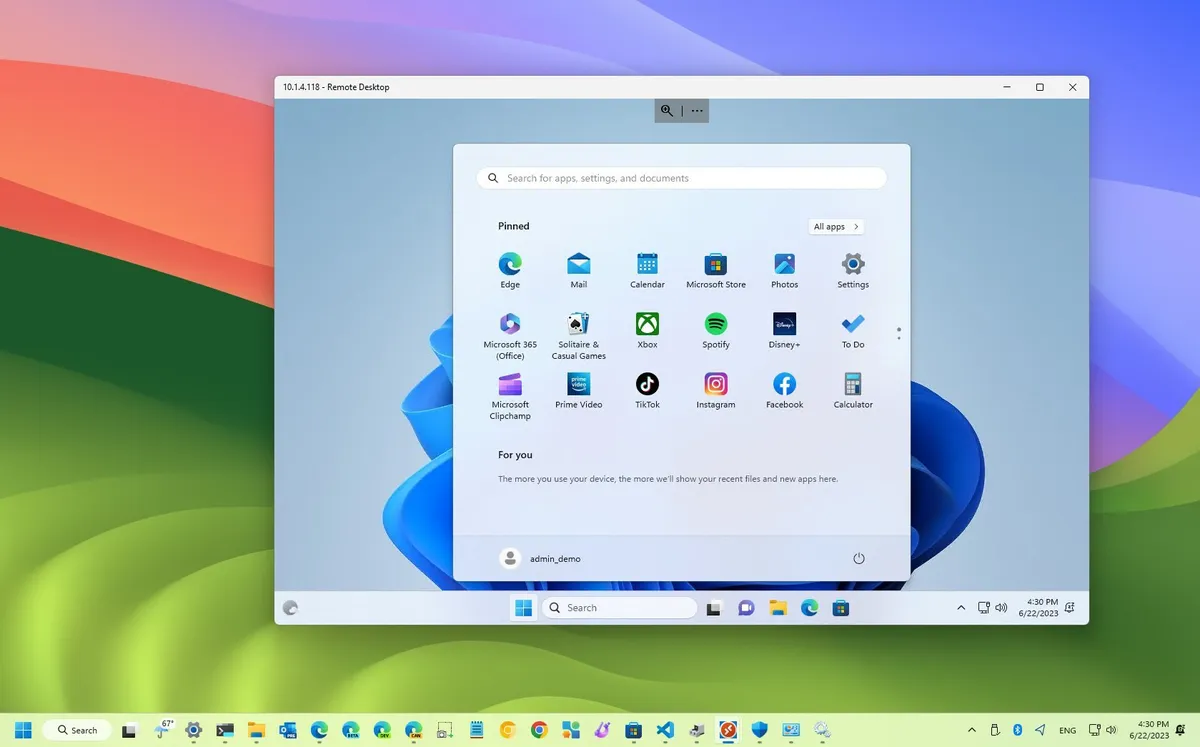
Remote Desktop is undoubtedly one of the most beneficial Windows 11 Pro features for frequent travelers or hybrid workers who can't always take their main PC with them when they're on the move.
Once enabled (requiring just a few clicks) on your main PC that's running Windows 11 Pro, Remote Desktop allows you to access that PC from practically anywhere with an internet connection.
Best part? The device with which you connect to your main PC doesn't have to also be running Windows 11 Pro. Windows 11 Home works, as do Android, macOS, and iOS. Once connected, you can operate your main PC just as though you're sitting in front of it, with access to all your files, folders, and apps in place.
It's a lot like having your primary PC with you everywhere you go, without the hassle of lugging a desktop or a heavier mobile workstation with you. You'll spend less time worrying whether or not you have the proper files and apps installed on your secondary device, and more time getting work done.
BitLocker to Go

Windows 11 Pro's BitLocker Drive Encryption is one of the operating system's most important exclusive features, especially for anyone dealing with sensitive data. However, I want to focus on a sibling tool that can make your life a lot easier.
I'm talking about BitLocker to Go, a Windows 11 Pro addition designed to encrypt removable storage. That's right; it's not just the fixed drives in your Windows 11 Pro PC that can be encrypted to keep your system secure. It also works for USB flash drives, SD cards, and external hard drives.
Once BitLocker is enabled on your Windows 11 Pro PC, any removable drives you plug in will also show up in the BitLocker encryption options menu. All you have to do is enable BitLocker for the removable drive, set a password, and jot down a recovery key.
Once encrypted, it can be read on other PCs assuming you have the right password to unlock it. That makes it so much easier to share data with teammates and colleagues without worrying about security.
Windows Sandbox
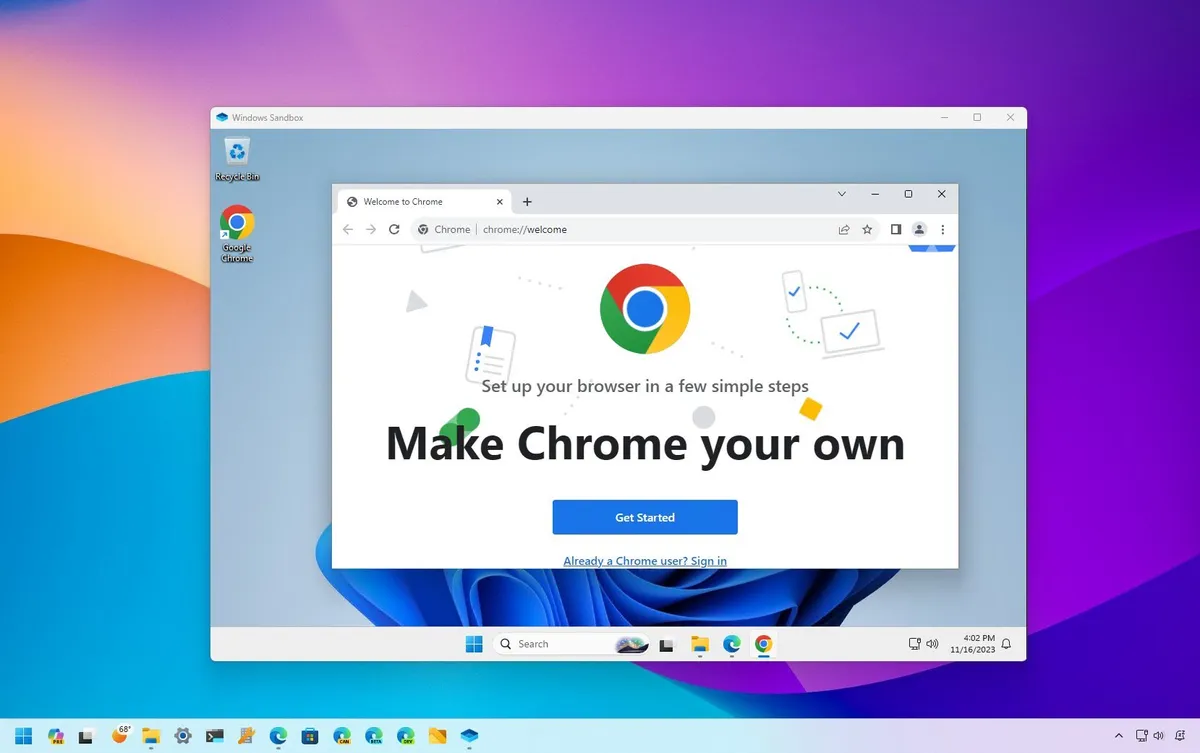
Windows Sandbox (WSB) is an isolated, disposable instance of Windows 11 Pro that can be fired up with minimal effort and used to test or experiment with files and apps that you don't trust to run on your PC. It's essentially the easiest way to use a virtual machine within your PC.
The temporary sandbox is just that; every time you close it, it deletes everything inside. Launch it again, and you have a completely fresh instance to work with.
Best part? Whatever you run inside the sandbox can't touch the rest of your PC thanks to its kernel isolation, making it a great place to muck around with unsafe or unstable content.
Windows Sandbox takes mere seconds to get running, and it's designed to optimize memory usage so it doesn't bog down the rest of your system. Even if you aren't a developer, this is a great way to test out untrusted apps without putting your system in peril, which could lead to a lot of unnecessary troubleshooting down the line.
Windows Update Controls
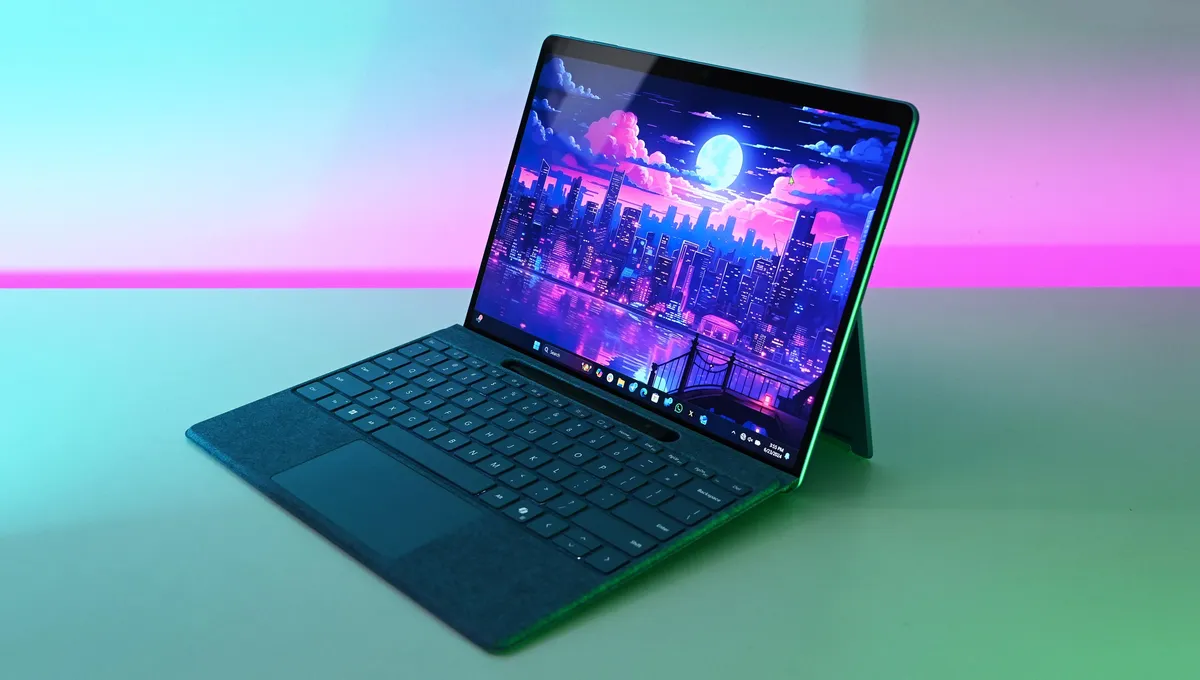
All Windows 11 PCs give you some control over Windows Update, but Windows 11 Pro takes it one step further with additional controls for scheduling. This allows your PC to remain as secure as possible with minimal interruption to your workflow.
The last thing you want when you're trying to hit a deadline is to see that Windows 11 needs to update, and this feature is designed to avoid those scenarios with a more granular approach.
The ability to land updates outside of working hours and to schedule specific times for updates is a huge boon for all professionals, whether part of an organization or working solo.
Windows 11 Pro makes it easy to be productive
Windows 11 Pro is full of productivity features that many users simply don't know exist.
And yet, they're invaluable when it comes to getting more done, whether that involves fewer interruptions, remote access to your PC, secure data sharing with physical media, or temporary sandboxes where you can test out apps and files without harming the rest of your system.

