


Windows 11 ships in two different flavors — the Home and Pro editions. And as the names suggest, the Home edition is designed to serve consumers, while the Pro edition is curated for professionals and businesses. Both editions are great, but it all boils down to your use case, requirements, and the features you'd like to have access to.
For context, Windows 11 Pro ships with extra features that you'd not find in the Home edition, including Windows Information Protection, Mobile Device Management, Kiosk Mode, and more. It's worth noting that you'll have to dig a little deeper into your pockets for the Pro edition, adding an extra $99.99 to the $139.99 you'd spend on Windows 11 Home.
As such, the Windows 11 Pro edition is undoubtedly your perfect companion in the corporate world, as it provides the extra edge and layer of protection and security to keep your business secure from sophisticated ploys by bad actors.
However, the user will be required to take several steps (which shouldn't take more than 30 minutes) to reduce risks and ensure the system's defenses are firing on all cylinders.
Keep your Windows 11 PC updated
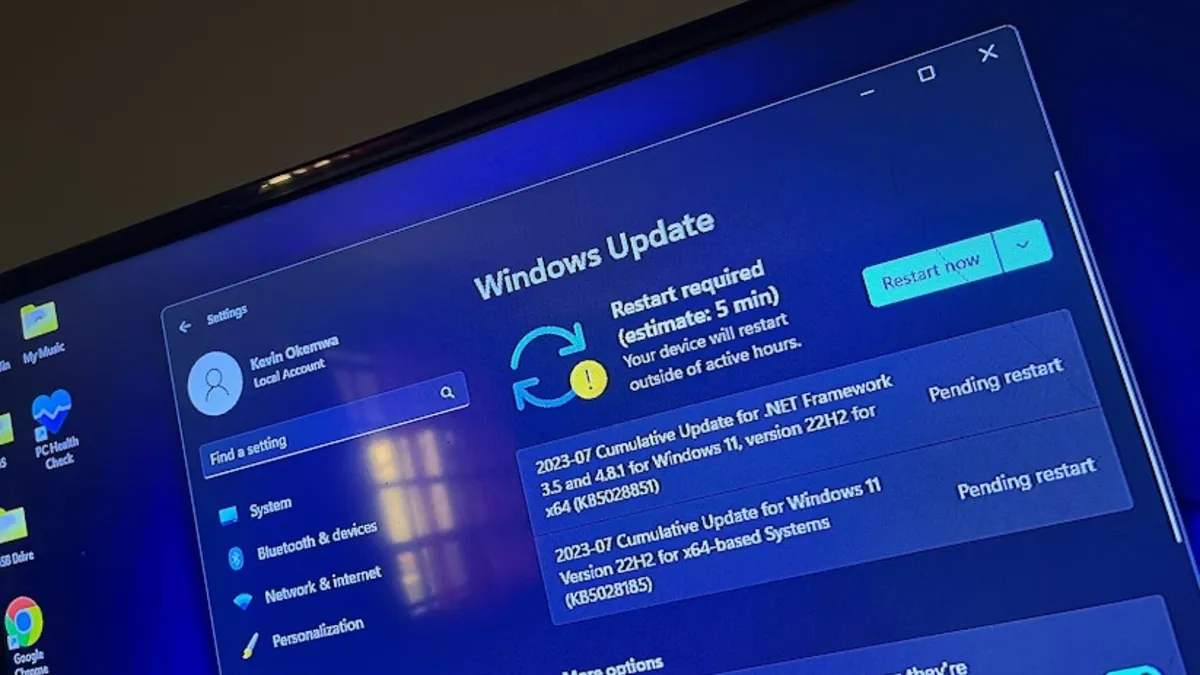
As basic and simple as it might sound, it's important to ensure that you install security patches as soon as they become available. This acts as your first line of defense against cyberattacks that could grant hackers unauthorized access to sensitive data.
However, it's worth noting that there are rare occurrences where these updates might ship with issues that might affect how your device runs. That said, Microsoft usually comes up with workarounds for these issues promptly while working on a permanent fix.
Alternatively, if you had created a restore point, you can easily roll back to a stable configuration until the persistent issue is resolved.
Enable advanced security features

Cyberattacks aren't the only threat to your work PC running Windows 11 Pro. As such, it's important to also ensure that security features like BitLocker Drive Encryption are enabled. This way, your data is protected from prying eyes, even if your device is stolen or gets lost.
Additionally, you can decide to go completely passwordless with Windows Hello. This not only saves time that would have otherwise been spent remembering multiple different passwords to different services. Windows Hello provides a personal and secure way for user authentication, including a PIN, facial recognition, or fingerprint.
Use Microsoft Defender to get ahead of malware
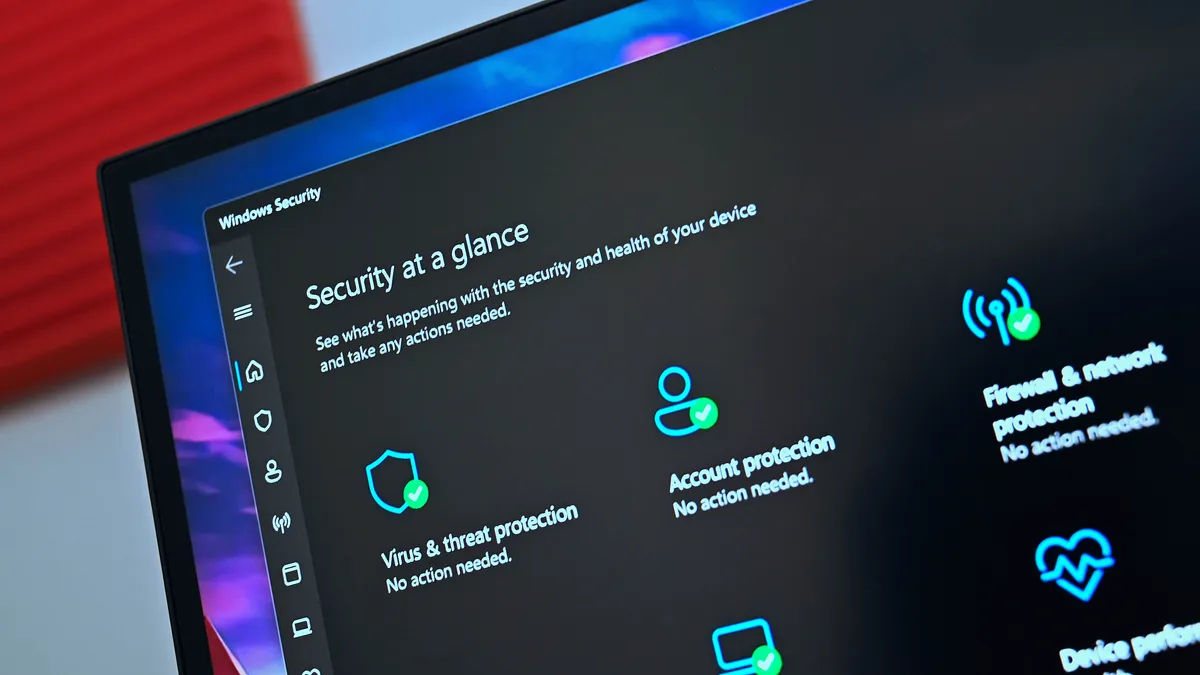
Windows 11 Pro ships with Microsoft Defender as an in-box app (enabled by default), which is designed to provide users with real-time protection. While users may be swayed to install third-party antivirus software, Microsoft argues that “For many Windows 11 users, Microsoft Defender Antivirus covers everyday risk without requiring additional software.”
Running more than one antivirus on your Windows PC might be counterproductive. Microsoft warns that it may cause system conflicts and stress your device's resources.
If you need to run an untrusted application on your Windows 11 device, you can use the platform's built-in virtualization tools, like Hyper-V or Windows Sandbox, to test it in an isolated environment, keeping the rest of your system out of harm's way.
As an extra layer of protection, Smart App control combines Microsoft's app intelligence services and Windows' code integrity features to protect users by blocking untrusted or malicious apps automatically.
You might have already ticked all the boxes listed above, but your Windows 11 PC may still be susceptible to malicious attacks if the network is exposed. This is where Windows Firewall comes in.
It's a built-in network security system, which is designed to monitor incoming and outgoing traffic. Think of the tool as a barrier between your Windows PC and the web, blocking unauthorized access to sensitive data while simultaneously fostering safe and effective communication.
Limit app permissions
Finally, it's important to check app permissions under Privacy & Security in Windows 11's settings. This will allow you to quickly disable unnecessary access to location, camera, and microphone.
To make the process seamless, you can also use the User Account Control (UAC)feature to prevent unauthorized changes in your Windows PC. You can set the feature to "Always notify" when:
- Notify you when programs try to install software or make changes to your device
- Notify you when you make changes to Windows settings
- Freeze other tasks until you respond
Microsoft recommends this setting for users who install new software on their devices regularly or visit unfamiliar websites.
And as a bonus tip for enterprise-grade protection, you should download and apply the Microsoft Security Baseline via the Security Compliance Toolkit. It'll ensure that recommended policies across accounts, devices, and apps are enforced without breaking a sweat.
The tips highlighted above will help you transform your Windows 11 Pro work PC into a rock-solid machine, enhancing both effectiveness and efficiency while keeping security at the forefront.

