Windows Central Verdict
The Razer Soma Chroma is an absolute blast of a gaming chair. It takes a ridiculous concept and executes it with high-quality materials, stable wireless connectivity, and genuine ergonomic support. It might not be a necessary upgrade for the casual office worker, but for the enthusiast who wants to lean completely into the ultimate battlestation aesthetic, it delivers exactly what it promises.
Reasons to buy
- +
Novelty fun factor
- +
Works well
- +
Comfortable for long durations
- +
Price seems fair, though it's not cheap
- +
Peak Razer
Reasons to avoid
- -
Requires some thought on charging
- -
Cloth is trickier to keep clean
- -
No 3D/4D armrests
Why you can trust Windows Central Our expert reviewers spend hours testing and comparing products and services so you can choose the best for you. Find out more about how we test.
We all knew this day would come. Razer has spent the last decade spreading its glowing tendrils into every conceivable corner of the tech world, putting colorful lights on everything from mousepads to beverage coasters. A fully illuminated gaming chair was always a matter of when, not if.
Enter the Razer Soma Chroma, announced on June 25th. It is a product that answers a question absolutely nobody was asking, yet it manages to be completely awesome in execution. Is a neon-soaked headrest necessary to hit your headshots in Valorant? Not even slightly. Is it a hilarious, beautifully built piece of functional performance art? Absolutely.
While the minimalist crowd might scoff at the pure absurdity of a glowing chair, it is exactly this kind of unhinged commitment to a design identity that keeps me in this game. I love to see companies take genuine risks and lean heavily into who they are, and Razer did not blink here.

I've been part of Windows Central since 2007, having reviewed and covered many keyboards, gaming accessories, laptops, and PCs from all sorts of companies from the perspective of a Windows enthusiast and unabashed PC lover. I also run this site and have seen a lot in nearly 20 years here!
Razer had no input, nor did it see the contents of this review, prior to publication.
The Evil Throne Visual Aesthetic

Setting up the Soma Chroma is an absolute breeze. From cracking open the massive cardboard box to actually parking my rear end in the seat, the entire assembly process took me less than 10 minutes. The parts clear out easily, the bolts line up beautifully, and the 6 cm PU caster wheels pop right into the powder-coated steel base without throwing a tantrum. Once assembled, those wheels roll smoothly across both hard floors and rugs alike without any annoying stuttering.
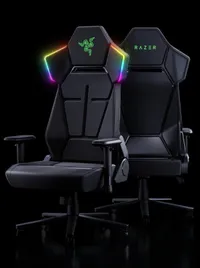
When you finally stand back and look at it, the visual payoff is immediate. The standout feature is the pair of prominent RGB wings framing the headrest area.
The Razer Soma Chroma turns your desk into a sci-fi command center, framing you in a spectacular neon halo that makes you look like a movie super villain.
Sitting in this chair makes you feel like an antagonist plotting world domination while waiting for your casual matchmaking lobby to fill up. As you can see in the above photos, the lighting strip is perfectly uniform, incredibly bright, and creates a spectacular glow that looks brilliant on a stream camera or reflecting off a dark wall.
Comfort for the Long Haul

Beyond the light show, a chair actually needs to work as a piece of furniture. I spent the last 10 days using the Soma Chroma as my daily driver, logging a punishing 8 hours a day for multiple days, and my back has been perfectly happy.
Razer opted for a dual-density cold-cured foam setup for the cushion. There is a noticeably softer outer layer that immediately contours to your body when you sit down, which sits directly on top of a much firmer base layer that keeps the chair from bottoming out over long sessions. The built-in ergonomic lumbar arch provides great passive support to your lower spine, encouraging a healthy posture without requiring constant manual adjustments.

Instead of the premium leatherette styling found on the Iskur line, the Soma Chroma utilizes a soft cloth fabric upholstery. You can see the distinct paneled layout of the fabric seat base. The material feels cozy, gentle, and broken-in right out of the box, though it does tend to collect a bit of back heat.
On particularly warm summer days, you might find yourself wishing for a bit more ventilation. It's also a magnet for pet hair, if you have furry friends as I do.

My biggest critique lands squarely on the armrests. The chair features basic 2D armrests that only allow for height adjustments and generic inward or outward angling. If you are moving over from a high-end chair with 3D or 4D armrests, the lack of forward, backward, or lateral sliding movements feels like an unfortunate omission on a $499.99 piece of hardware.
Controlling the Light Show

Connecting the chair to your PC is as familiar as any other Razer peripheral. You can use Bluetooth for a quick mobile hookup, or plug in the included 2.4GHz wireless USB Type-A dongle for a low-latency connection to your rig.
Once connected, the Synapse software gives you complete control over the 16.8 million colors. You can easily adjust the overall brightness slider, toggle power-saving sleep timers to dim the lights during inactivity, or launch Chroma Studio to synchronize your seating with game-reactive profiles.
You can see in the photo below how you can use multiple colors at once and use preset motion settings like Ripple, Starlight, Reactive, or Static to give the effect you want. In that photo, I went with Windows Central's colors, which is fun. Most of my photos here are static, simply because having Ripple or Wave enabled, which looks awesome, may be distracting if you're on a professional web call versus streaming on Twitch.

If you already own other hardware like my just-reviewed Seiren V3 Pro microphone, the Huntsman V3 Pro TKL, or the ultra-premium Huntsman Signature Edition, the ability to sync your entire room's theme together creates an incredibly cohesive ecosystem.
If you prefer to adjust things on the fly without minimizing your game, there is a physical control panel stitched directly into the fabric on the top of the headrest. The buttons are clicky and responsive, allowing you to turn the RGB on or off, cycle through effects, and tweak brightness.

The comedy here is that you cannot actually see or easily reach these buttons blindly while sitting down. You have to get up out of the chair to make physical adjustments, making Razer Synapse the vastly superior option for mid-game tweaks.
Powering Your RGB

Because dangling a long power cable off a spinning, rolling desk chair is an absolute recipe for disaster, Razer designed the Soma Chroma to run completely wirelessly via a clever hidden feature. There is a dedicated zipper pocket built directly into the rear of the seat base. This pocket allows you to tuck away a standard USB Type-C power bank (not included), keeping your setup clean and cord-free.
If you absolutely despise dealing with batteries, you can buy a Razer Type-C extension cable separately for about $19.99 on Amazon to plug the chair straight into a wall outlet. This gives you an always-on light show, but it obviously creates a massive trip hazard if you like to spin around or roll across your room.
Fortunately, running it wirelessly is shockingly viable. During my 10 days of evaluation, I hooked the chair up to a standard 49.6WHr battery pack. After two full, continuous workdays consisting of 16 total hours of use with the RGB strips cranked to absolute maximum brightness, the battery pack was only down by roughly 50%. That means you can easily expect a massive 30-plus hours of glorious neon illumination before you ever need to think about pulling the battery pack out to recharge it.
Missing Perks and Future Upgrades

It is worth noting that the standard Soma Chroma does not feature any internal haptic feedback. If you want your seat to rumble alongside your games, you will need to buy an additional add-on pad like the recently reviewed Razer Freyja cushion.
Knowing Razer's historic release patterns, I am completely confident that we will eventually see a premium Soma Chroma "Pro" down the line that integrates both the fancy lighting strips and full-body haptic motors into a single package. When that inevitably happens, it will likely cost a small fortune, which makes the $499.99 entry fee for this model feel relatively reasonable for the wild novelty and comfort it brings to the table.
Razer Soma Chroma review: My final thoughts

✅ You should buy this if ...
- You want peak gamer aesthetic (or like fun).
- You want a solid, comfortable gaming chair
- You already have a lot of Razer accessories to pair with it
❌ You should not buy this if ...
- You work in an office, or need something more professional
- You prefer leatherette materials
- You don't want to charge/power yet-another-accessory
The Razer Soma Chroma is an absolute blast of a gaming chair. It takes a ridiculous concept and executes it with high-quality materials, stable wireless connectivity, and genuine ergonomic support. It might not be a necessary upgrade for the casual office worker, but for the enthusiast who wants to lean completely into the ultimate battlestation aesthetic, it delivers exactly what it promises.

Razer’s Soma Chroma is a wireless RGB gaming chair powered by a simple USB‑C power bank, keeping your setup clean while adding reactive lighting to your entire battlestation. The real surprise is the comfort. Dual‑density foam, an ergonomic lumbar arch, and a reinforced frame make it feel like a genuine upgrade, not just an RGB stunt.