


Leading up to Season 2 of Amazon's Fallout TV show, I decided to take a look at how well each of the games in the Fallout series played on handheld gaming PCs (like Xbox Ally X, Steam Deck, Legion Go 2, and more), and give tips on how to optimize them for these devices.
Now, I thought this would be fairly straightforward — load up each game in both Steam and the Xbox App, tweak settings, and see what kind of performance I can get on the lowest TDP possible to maximize battery life while maintaining a relatively comfortable 60FPS — but it really wasn't that easy.
But fear not, I took the time to find some workarounds for each of the Fallout games on both Steam and the Xbox App, and have detailed step-by-step instructions for them on this page.
Without further ado, here's how to get Fallout, Fallout 2, Fallout 3, Fallout: New Vegas, Fallout 4, and Fallout 76 to run on handheld gaming PCs like Xbox Ally X.

Prerequisites: Handheld system settings
Before you attempt to play any of these Fallout games on handhelds, you're going to want to change your handheld's system settings. I highly recommend you manually adjust VRAM allocation and enable the HYPR-RX graphics suite to get the best game performance.
I've included instructions on how to change VRAM on ASUS ROG handhelds below. If you have one of Lenovo's handhelds, follow our Legion Go VRAM guide instead.
How to change VRAM allocation on Xbox Ally X (and other ASUS ROG handhelds)

- Start by pressing the Armoury Crate button to open the Armory Crate Command Center. Select Open Armory Crate SE.
- Once Armoury Crate opens, head to Settings using the cogwheel icon.
- From there, select Performance.
- Next, tap the GPU Settings tab.

- Tap the dropdown box to the right of where it says "Memory Assigned to GPU."
- Change VRAM to 6G.
- Wait while the handheld automatically restarts.
For Fallout games, allocating 6GB to VRAM is generally okay. Some titles may struggle at the default 4GB, while 8GB is rarely necessary and can reduce available system memory.
If the VRAM option does not appear, make sure your device is fully updated and then reboot your handheld before trying again.
How to enable HYPR-RX on Xbox Ally X

Most handhelds with an AMD Z1 or Z2 series processor can enable HYPR-RX, a graphics suite that enhances game performance.
More specifically, AMD Software lets you apply a single graphics preset that affects all games system-wide, which is useful if you want consistent performance without tweaking each title individually.
- To enable HYPR-RX, open the AMD Software app, by searching for it (this is easier in Windows Desktop mode).
- Go to the Gaming tab.
- Select Graphics.
- From here, turn on HYPR-RX.
On the Xbox Ally X, ROG Ally, and Legion Go handhelds, HYPR-RX is the recommended option as it applies a balanced set of performance-focused features automatically. The base Xbox Ally does not support HYPR-RX, but it does offer a Performance preset instead.
This menu also gives you access to other features like Radeon Super Resolution, Anti-Lag, Fluid Motion Frames, and Radeon Boost. These apply across all games, so it is best to treat them as options you set and forget about, as opposed to changing them per game.
Fallout 1 and Fallout 2 handheld optimization



If you want to play Fallout 1 or Fallout 2 via the Xbox App or Steam, you'll either need to use the workaround I've detailed below or be willing to map the controls yourself, using this keyboard layout for Fallout 1 and this layout for Fallout 2.
Be warned, the fix for getting both Fallout 1 and Fallout 2 to work on handhelds is on the tedious side.
Whenever you try to launch these games on either the Xbox App or Steam, you're prompted with a terrible-looking launcher, and when you select Play, you're prompted with "Error initializing video mode: 1024x768."
To fix this, we have to do either of the following (I did both just in case):
- Open the Xbox App and navigate to the Fallout game page.
- Select the More Actions button that has the three dots on it.
- Select Manage.
- Once here, go to Files and select Browse.
- When the File Explorer comes up, select Fallout (PC) or Fallout 2 (PC), depending on which you're fixing (also choose your language of choice).
- Go to Content.
- Select f1_res_Config or f2_res_config.
- A new Window will open. In here, select "Manually Edit Config," or choose your target resolution and select Enable if available.
- This should open in Notepad, but if prompted, select Notepad.
- Next, you want to change SCR_WIDTH to 1920.
- After that, change SCR_HEIGHT to 1080.
- If you encounter other issues, try setting the options WINDOWED=1 and WINDOWED_FULLSCREEN=0 to match here.
- Now, save and close the file.
If you're playing through Steam, you should be done and able to correctly launch the game. If you're playing via the Xbox App, however, like I was then, you may need to do one extra step.
This step is where things got tricky for me, as the earlier step didn't work for me via the Xbox App. Instead, I had to take it one step further and edit the files within the WindowsApps folder, which can be done like so:
Additional steps for Fallout 1 & 2 on the Xbox App


- Within File Explorer, select View, then Show, and make sure Hidden items is enabled.
- Next, open File Explorer and go to your C drive.
- Open Program Files, and locate WindowsApps.
- Right-click WindowsApps.
- Select Properties.
- Go to the Security tab, then select Advanced.
- At the top, next to Owner, select Change.
- Select Advanced.
- Choose the option Find Now.
- You'll want to select your user account and click OK.
- Click on the box next to Replace owner on subcontainers and objects.
- Select Apply, then select OK.
- Return to the Security tab and select Edit.
- Select your user account, then enable Full control.
- Select Apply, then select OK.
- Now open WindowsApps, and you should be able to browse it normally.


Now follow the first steps again and apply it to your language of choice, and that should mean you can launch the game through the Xbox App now.
This fix will also work on Steam; however, the location of the folder is different. You should simply be able to install the "Fallout1_High_Resolution_Patch_4.1.8." However, I will cover what to do if this does not work in the next section.
Additional steps for Fallout 1 & 2 on Steam
Here's how you get to the same folder but if you installed the game via Steam:
- Within Steam, right-click Fallout 1 or Fallout 2 in your library and select Properties.
- Select Installed Files from the menu on the left.
- Click Browse to open the game’s install directory in File Explorer.
- Now try to install the Fallout1_High_Resolution_Patch_4.1.8 or Fallout2_High_Resolution_Patch_4.1.8 patch.
- You will be prompted to extract files. Select Yes and then select Yes to all.
- If this doesn't work, follow the same guide as above and open up f1_res_Config or f2_res_config.
- A new window will open. In here, Select "Manually Edit Config".
- This should open in Notepad, but if prompted, select Notepad.
- Next, you want to change SCR_WIDTH to 1920.
- After that, change SCR_HEIGHT to 1080.
- Make sure WINDOWED=1 and WINDOWED_FULLSCREEN=0 are like this.
- Finally, save and close the file.
With all that done, you should be able to play Fallout 1 or Fallout 2 on your handheld gaming PC regardless of if you're playing through the Xbox App or Steam.
Fallout 3 handheld optimization



In my experience, Fallout 3 actually performs fairly well at 1080p using a mix of high and medium settings, maintaining a stable 60FPS at 17W TDP.
The performance issues I previously ran into turned out to be caused by the FPS overlay being enabled in Armory Crate, which had a significant negative impact on frame pacing and overall performance.
- Launch Fallout 3. Note that the game opens its external launcher rather than booting straight into gameplay.
- From here, select Config to access the video settings.
- Change settings to your preferred options (we've included recommended settings below).
- Note that you must either use Desktop Mode or tap the screen to interact with the launcher. You can change to Desktop Mode by pressing the Armoury Crate button and then tapping the Control Mode button until it changes from Gamepad to Desktop.
- Once your settings are configured, select Okay.
- Double-press Play to launch the game.
RECOMMENDED FALLOUT 3 SETTINGS FOR HANDHELDS:
At 1080p, the launcher’s auto-detected settings were mostly usable, but I still recommend double-checking them manually. I settled on the medium preset as it still looks great to me. I also usually disable vertical sync here, although this is optional.
I initially attempted to cap the frame rate to 60FPS using Armory Crate, but this did not reliably limit FPS.
More importantly, enabling the Armory Crate FPS overlay introduced heavy performance issues, so I recommend leaving it disabled entirely when playing Fallout 3.
NOTE: Fallout 3 does not allow graphical changes once in-game, so all adjustments must be made through the launcher beforehand.
If you do run into performance drops in heavier areas, increasing TDP from a lower wattage to a higher wattage can help significantly, but it will drain the battery much faster. I found that 35W was ideal on my Xbox Ally X.
Fallout: New Vegas handheld optimization



Fallout: New Vegas behaves very similarly to Fallout 3, and once again, my initial performance issues were not entirely down to the game itself.
With the Armory Crate FPS overlay disabled, Fallout: New Vegas runs comfortably at 1080p using medium settings. With this, I am able to hold a steady 60FPS at 17W TDP and even higher than 60FPS in some instances.
Here's how to change Fallout: New Vegas settings for handhelds:
- Launch Fallout: New Vegas, to bring up the game's external launcher.
- Select Config to access the video settings.
- Now it's time to change settings to your preferred options (we've included setting recommendations below).
- Note that you must either use Desktop Mode or tap the screen to interact with the launcher. You can change to Desktop Mode by pressing the Armoury Crate button and then tapping the Control Mode button until it changes from Gamepad to Desktop.
- When you're done making changes, select OK.
- Select Play to start the game.
RECOMMENDED FALLOUT: NEW VEGAS SETTINGS FOR HANDHELDS:
At 1080p, the launcher’s auto-detected settings are mostly okay, same as Fallout 3. However, they are still worth checking manually. I avoided Ultra settings and stuck to Medium. Disabling vertical sync here is optional, but like Fallout 3, I leave it off.
More importantly, enabling the FPS overlay caused noticeable performance and frame pacing issues, so it is best left disabled entirely.
NOTE: Like Fallout 3, Fallout: New Vegas does not allow graphical changes once in-game, so all adjustments must be done through the launcher before launching.
If performance still isn't the best here, increase your handheld's TDP. Just remember that your battery drains faster when TDP is set at a higher level.
Fallout 4 handheld optimization


Fallout 4 behaves very differently from Fallout 3 and Fallout: New Vegas. The traditional launcher is disabled, and in-game Graphics menus can sometimes be missing entirely on handhelds.
If you booted up Fallout 4 and you can see the graphics settings options, then check out our guide on the best Fallout 4 settings for Steam Deck, ROG Ally, and Legion Go gaming handhelds.
However, if you do not see the graphic settings, then continue reading. As a heads up, to fix this, you'll need to manually configure things via a config file. Here's what to do:


- Before making any changes, make sure you have launched the game at least once so the necessary config files are generated on your handheld.
- Locate the Fallout4Prefs.ini and Fallout4.ini graphics settings files for Fallout 4.
- Graphics settings for the Xbox App version of Fallout 4 are stored in Documents\My Games\Fallout4 MS.
- Graphic Settings for the Steam Version of Fallout 4 are stored in: Documents\My Games\Fallout4 MS.
- Before editing anything, create a backup of these files and store them somewhere safe.
- Once the backup is created, download the files from NexusMods.
- Once downloaded, extract the contents of these new files.
- Choose the Low options.
- Once extracted, replace the Fallout4Prefs.ini and Fallout4.ini files that were in either Documents\My Games\Fallout4 MS or Documents\My Games\Fallout4 MS with the files from whichever preset you choose.
Note that I still experienced some hitches here and there with these low settings, likely as assets were loading in, but it was still an improvement over the base settings.
It is also important to note that the above is strictly for if you're having issues at all, and should help devices that aren't as powerful as an Xbox Ally X or other similar spec hardware.
RECOMMENDED FALLOUT 4 SETTINGS FOR HANDHELDS:
I ran into significant performance issues again whilst testing Fallout 4 that are similar to what I experienced with Fallout 3 and New Vegas. These issues were caused by the FPS indicator being enabled in Armoury Crate, so I recommend turning it off when playing Fallout 4.
Otherwise, Fallout 4 will autodetect your settings and should run fine for most users. If that doesn't seem to happen, then dive into the graphics settings and change everything to low.
Fallout 76 handheld optimization

When launching Fallout 76 for the first time, you will be prompted to log into your Bethesda account. In my case, the on-screen keyboard did not appear automatically. To fix this, do the following:
- Press the Armory Crate button
- Select the Keyboard option.
The on-screen keyboard does block what you are typing, so it is worth taking your time. The backspace option during this step also doesn't work, meaning any mistake requires closing the game and starting again.
Alternatively, you can connect a physical keyboard and enter your details normally, which is the smoother and less frustrating option overall.
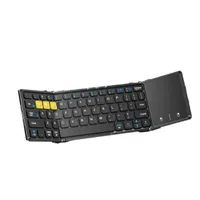
By the way, we highly recommend the Artciety Foldable Bluetooth Keyboard for handheld users.
How to adjust Fallout 76 settings on handhelds
Fortunately, unlike Fallout 3, New Vegas and Fallout 4, you can change graphical settings in-game with Fallout 76.
- Run Fallout 76.
- Press the Start button whilst in-game.
- Tap LB to move across the menu and select Settings.
- Then go to Display.
Note that you can also access these options from the main menu before loading into the game by going to Settings and selecting Display.
By default, Fallout 76 sets most options to Ultra for me. The Xbox Ally X handles this better than expected, but I prefer to prioritise performance over visual fidelity to maximise frame rate and overall smoothness. I suggest putting the graphics down lower, but you can experiment and see what you prefer.
You should be ready to play Fallout on your handheld now
That is how you get every major Fallout title running on a Windows-based handheld, and hopefully this guide has been useful.
It is worth mentioning that while these settings worked best for me, your mileage may vary depending on the device you are using. You may be able to push higher settings or lower your TDP further, but my goal here was to prioritise battery life while still maintaining a smooth experience above 60FPS.
Each setup should give you a solid baseline, with room to tweak further if you want more performance or longer battery life.

Follow Windows Central on Google News to keep our latest news, insights, and features at the top of your feeds!

