


It’s not quite SteamOS we’re working with here but rather Bazzite. For those who don’t know, Bazzite is a SteamOS-style Linux operating system that aims to mimic the SteamOS experience, but it is not affiliated with Valve.
Installing Bazzite on a Windows handheld can come with real benefits. It can make your device feel more console-like than Windows does today, even with the Xbox FullScreen Experience and in some instances Bazzite has reported improvements to performance.
The trade-off is that a full Bazzite install means giving up some of what Windows does best. That includes native Xbox Game Pass PC support, and certain games that rely on anti-cheat, such as Battlefield 6 and Call of Duty.
That’s where dual booting makes sense. It lets you use Bazzite for a more console-style experience, while keeping Windows ready for Game Pass, the wider Xbox ecosystem, and anything else you may need Windows for.
Important things to note before you begin
You’ll need a reasonable amount of free SSD space. While 64GB is the minimum required for Bazzite itself, allocating more is strongly recommended, with a roughly even split between Windows and Bazzite offering the most comfortable experience for games, updates, and day to day use.
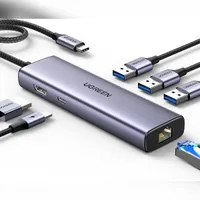
A USB drive is required to create the Bazzite installer. It should be at least 16GB in size, and anything stored on it will be erased during the process. You’ll also need a USB hub, as most Windows handhelds do not have enough ports on their own. Ideally, the hub should support multiple USB devices at once, including a keyboard, mouse, and USB drive.
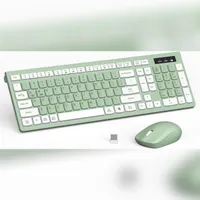
While some steps can be done directly on the handheld, a keyboard and mouse make the installation significantly easier. Certain menus are awkward to navigate with touch or controller input, and using proper peripherals helps avoid mistakes.
Prerequisites
Before installing Bazzite, there are a couple of Windows settings that need to be checked. Fast Startup and Hibernate should both be disabled, as they can cause file system and boot issues when Windows and Linux share the same device.
To disable hibernation on Windows 11, follow these steps below:
- In Windows Desktop Mode, open the Start Menu.
- Search for Command Prompt, right-click, and open as Administrator.
- Within the Command Prompt, type: powercfg.exe /hibernate off
- Press Enter, and it will disable hibernation.
This option might not be there but just to be sure, you'll want to disable Fast Startup. To do this follow the steps from this guide linked here.
These features keep parts of Windows in a semi-active state rather than fully shutting down. That can interfere with how Bazzite accesses the drive and may lead to boot problems or stability issues later on.
It is also worth making sure Windows is fully up to date before you begin. Running major updates after setting up a dual boot can introduce boot changes, so taking care of them in advance helps keep everything working as expected once Bazzite is installed.
If you haven’t already I do highly recommend you get a USB-C Hub to connect your USB drive and mouse and keyboard to your handheld, here is the one I use and recommend:
Step 01A: Downloading the required files


Before we begin, we first need to create our boot media, I will be doing these steps on an Xbox Ally X, however, the steps will be mostly identical on all Windows handheld devices.
With that said, follow these steps below for creating Bazzite boot media:
- If you’re in the Xbox FSE, swipe up from the bottom and go to Windows Desktop.
- On Windows Desktop, open your web browser.
- Go to this website: https://bazzite.gg
- Select Download Bazzite in the top right corner of the website.
- Here you can select your hardware.
- I will be choosing the Xbox Ally X, but choose whichever one corresponds to your handheld.
- You will then be asked to pick a desktop environment; select KDE (Like SteamOS’s Desktop)
- Then select the option Download bazzite-deck Legacy ISO.
- Wait for that download to finish.
With that downloaded, next we’ll need to download and install a program called Balena Etcher, this will allow you to create a boot media from the ISO file we just downloaded. Follow these steps to download Balena Etcher:
- If you’re in Xbox FSE, swipe up and go to Windows Desktop mode.
- On Windows Desktop, open your browser of choice.
- Go to this website: https://etcher.balena.io
- Scroll down and download the version that matches your system.
- Once downloaded, double-click the install file and install Balena Etcher.
- Go through the installation process.
With Balena Etcher now downloaded we can move onto installing Bazzite onto a USB Drive, if you’re interested, I have these two USB drives for any time I need to create any type of boot media, and you can find them here:

Step 01B: Creating your Bazzite boot media

With all the required files downloaded, we’ll need to load the ISO into Balena Etcher with Your USB Drive inserted into your handheld.
For the correct settings, follow the instructions below:
- Open Balena Etcher.
- Choose the option Select from file
- Confirm the correct USB drive is selected.
- Select Flash and wait for the process to finish.
Once complete, Balena Etcher will confirm the write has finished. You can then safely remove the USB drive and move on to the next step.
Step 01C: Disabling BitLocker


This step is precautionary but strongly recommended. If BitLocker remains enabled, like me, you may be prompted to enter a 48-digit recovery key during reboots or when changing boot settings, which can quickly become frustrating during a dual boot setup.
To avoid this, you should temporarily decrypt the drive by disabling BitLocker before continuing.
To disable BitLocker, follow the steps below while booted into Windows:
- Open the Start menu and search for Manage BitLocker.
- Select Manage BitLocker from the results.
- Locate your main Windows drive, usually listed as the C: drive.
- Select Turn off BitLocker.
- Confirm when prompted to begin decryption.
Windows will now start decrypting the drive in the background. This can take some time depending on your storage size, but you can continue using the device while it runs.
Step 02A: Entering BIOS
Entering the BIOS can vary slightly depending on your device. To keep things simple, this guide uses the Xbox Ally as the example. If you are using a different handheld, a quick search such as “how to enter BIOS on Legion Go 2” will point you in the right direction.
For the Xbox Ally, follow the steps below, or refer to our full dedicated guide if you need more detail.
- Fully power off the device.
- Press the Power button to turn it back on.
- Immediately begin pressing the Volume Down button repeatedly.
- Keep pressing until the BIOS menu appears.
Once you are in the BIOS, you can move on to the required settings changes in the next step.
Step 02B: BIOS Settings


Once you are in the BIOS, there are only a few settings that need to be checked or changed. It is important not to adjust anything else, as most options here do not need to be touched.
For the Xbox Ally, follow the steps below. Menu names may vary slightly on other handhelds, but the overall process is the same.
- Switch to Advanced Mode if your BIOS opens in a simplified view by pressing Y or selecting advanced view.
- Navigate to the Security tab.
- Locate Secure Boot and set it to Disabled.
- Confirm the system is using UEFI boot mode. In most cases, no change is required.
- Save your changes and exit the BIOS.
After saving, the device will either restart or return you to the boot menu. From here, you can continue with the next step of the installation.
Step 03A: Shrinking your Volume


Before installing Bazzite, you need to create space for it on your internal SSD. This is done by shrinking the existing Windows partition, which allows Bazzite to be installed without removing Windows.
Take your time during this step. Nothing is applied until you confirm it, but mistakes here are the most common cause of data loss.
To prepare your SSD, follow the steps below while booted into Windows and not in BIOS:
- Boot back into Windows if you are not already there.
- Open the Start menu and search for Disk Management.
- Open the first option.
- Locate your main Windows drive, usually labeled as the C: drive.
- Right-click the Windows partition and select Shrink volume.
- Wait while Windows calculates the available shrink space.
- Enter the amount of space you want to allocate to Bazzite.
- Confirm the shrink operation.
Once complete, you should see a section of unallocated space on the drive. Do not create a new partition here. This empty space will be used by the Bazzite installer in the next steps.
In some cases, Windows will refuse to shrink the partition by the amount you expect, even if there appears to be plenty of free space. This is usually caused by system files that Windows refuses to move automatically.
If this happens, follow Step 03B to remove those limitations.
Step 03B: Fixing Windows volume shrink limitations
First, disable hibernation, by following these steps:
- Open the Start Menu and search Command Prompt.
- Right-click the Command Prompt and select Run as Administrator.
- With Command Prompt open run the following command: powercfg -h off
Next, temporarily disable the page file, by following these instructions below:


- Go to the Start Menu, search for Control Panel, and open it.
- Go to System and Security.
- Select System; this will open System settings in a new window.
- Select Advanced system settings.
- Under Performance, select Settings.
- Open the Advanced tab and under Virtual Memory, select Change.
- Uncheck Automatically manage paging file size for all drives.
- Go back to the Change option under the Advanced tab.
- Choose No paging file and select Set.
- Reboot the device.
After rebooting, disable System Restore by doing the following:


- Open Control Panel.
- Go to System and Security.
- Select the option System.
- Choose Advanced System Settings
- Go to the System Protection Tab.
- Select your main Drive (it should be the top one in the list).
- With the drive selected, choose Configure.
- Then select the option Disable system protection and click apply.
Now we consolidate the free space, to do this follow these steps:
- Open Command Prompt again by right-clicking it and selecting Run as administrator.
- Type in the follow command: defrag C: /X
- With the command typed in, press Enter on your keyboard.
Once this completes, return to Disk Management and try shrinking the Windows partition again.
After you have successfully created unallocated space, you can re-enable the page file, System Restore, and hibernation if you normally use them. These changes are only required to help Windows release locked space during partitioning.
Step 04: Installing Bazzite
With your USB installer ready and unallocated space created on the SSD, you can now boot into the Bazzite installer and begin the installation process.
Follow the steps below:


- Fully power off the device.
- Make sure your Bazzite boot media is inserted.
- Boot back into the BIOS by pressing the power button and repeatedly pressing the volume down button.
- Press the Command Centre button on your Xbox Ally to enter the boot menu.
- Select your boot media from the options, on other devices, I’d Google how to enter the boot menu.
With that done, your device will reboot into your Bazzite boot media, from here follow these steps:


- Choose Install Bazzite-deck.
- Select your Region and click Continue.
- Choose the option Installation Destination under System.
- Make sure you choose your partitioned space and not your Windows drive.
- While still within the Installation Destination page, make sure that Advanced Custom (Blivet-GUI) is selected too and only your partitioned space is chosen.
- Once that is finished, select Done in the top left corner.
Step 05: Custom Partitioning and EFI setup
You should now already be on the Installation Destination screen, with Advanced Custom (Blivet-GUI) selected and only your unallocated space highlighted, as covered in the previous step, having select Done you will be taken to a new screen where we'll have to do some extremely important steps.
This step is where you manually create the partitions Bazzite needs. Take your time here. Everything you create must be done inside the unallocated space only. Do not delete or modify any existing Windows partitions.
Once you are in the Blivet-GUI partition editor, follow the steps below, and/or use the images I’ve provided with clear instructions on what to do.
Creating the EFI partition:


- Select the unallocated space.
- Click the plus icon to create a new partition.
- Change the file system to EFI System Partition.
- Set the mount point to /boot/efi
- Change the size unit to MiB.
- Set the size to 300.
- Confirm the changes.
Creating the boot partition:


- Select the remaining unallocated space.
- Click the plus icon.
- Leave the file system set to ext4.
- Set the mount point to /boot.
- Set the size to 1.0 GiB.
- Confirm the changes.
Creating the BTRFS partition:


- Select the remaining unallocated space again.
- Click the plus icon.
- Change the file system to BTRFS.
- Do not set a mount point yet.
- Use the rest of the available space.
- Confirm the changes.
You will now see a new BTRFS entry appear in the list.
Next, we need to create the BTRFS mount points.
First, the root mount:


- Select the BTRFS partition.
- Click the plus icon.
- Set the mount point to /
- Confirm the changes.
Next we need to create the Var mount:


- With the BTRFS partition still selected, click the plus icon.
- Set the mount point to /var
- Confirm the changes.
Lastly we have the Home mount:


- With the BTRFS partition still selected, click the plus icon.
- Set the mount point to /var/home
- Confirm the changes.
Now for the final checks before applying changes. Before continuing, double check the following:
- All newly created partitions are within the unallocated space.
- Your Windows partitions have not been changed or removed.
- You have an EFI system partition mounted at /boot/efi.
Once everything looks correct, do the following:

- Select Done from the top left
- Review the summary of changes.
- Select Accept changes.
Step 06: Finish installation
To finish the installation, you will first need to create your user profile. Select the User Creation option and enter your name, username, and password. Make sure you choose a password you will remember, as it will be required for system changes later on.
Next, connect the device to your network. Select the Network and Host Name option, choose your connection type, then select Select Network in the bottom right corner and connect to your Wi-Fi network. Once connected, return to the installer overview to continue.
With that all done, now choose the Begin Installation option in the bottom right corner of the main screen; this will begin installing Bazzite which may take some time.
Step 07: First boot into Bazzite
If you have followed the steps correctly, you will be prompted to reboot your device once the installation is complete. After rebooting, you will see a blue screen with the option to continue to boot.
Select this option to proceed. You will then be guided through the Bazzite setup process, where you can choose your language, time zone, and network settings if you did not configure them earlier. Once this is complete, Bazzite may still need to set up and install some things; wait for this to finish and then sign into Steam when prompted.
If the system appears stuck at this stage, remove the USB boot media if it is still inserted and restart the device. You may need to re-enter the BIOS and manually select your Bazzite installation from the boot menu before continuing.
Step 08: Switching between Windows and Bazzite
Because Windows does not play particularly well with shared boot setups, an extra step is required to make switching between operating systems reliable. This involves creating a Bazzite boot shortcut in Windows, and a Windows boot option inside Bazzite.
To do this, you will first need to boot back into Windows. Depending on your current state, this may require entering the BIOS again and selecting Windows from the boot menu.
Rather than duplicating a long set of steps here, I highly recommend following the video below or clicking here for text based instructions, which walk you through this process clearly and avoid common mistakes.
With everything complete, you should now have Bazzite and Windows successfully dual booted on your Windows handheld.
I followed the steps from the guide linked here from Pete Talks Tech and adjusted parts of the process to make it as clear and approachable as possible. If this helped you, be sure to show some support to the original video as well.
For now, enjoy having the best of both worlds, with Bazzite and Windows running side by side on a single device.

Join us on Reddit at r/WindowsCentral to share your insights and discuss our latest news, reviews, and more.

