


SteamOS already offers one of the best console-like experiences you can get on a PC handheld. It is fast, streamlined, and designed to feel simple in a way most desktop operating systems are not.
That said, installing Windows alongside SteamOS can unlock far more flexibility. Dual booting gives you access to games, launchers, and services that simply are not supported on SteamOS today, while still letting you keep the console-style experience when you want it.
In this guide, I will walk through the easiest and safest way to dual-boot Windows and SteamOS. The process works on Steam Deck, Legion Go S, Legion Go 2, and other handhelds that run SteamOS, and it is designed to avoid common mistakes that can lead to data loss or broken boot setups.
Before you start: During the Windows 11 installation process, you may see an option that says, "delete everything." Do not select this at any point. Choosing it can wipe your SteamOS partition and break the dual-boot setup.
A few extra tools will make this process much easier. While some steps can be done directly on the device, having the right setup avoids unnecessary frustration.
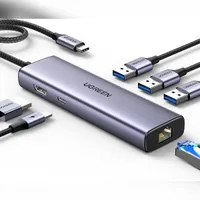
You will need a keyboard and mouse, a USB stick, and a USB hub that supports at least three USB devices at once, as well as Ethernet. Windows 11 also requires a minimum of 64GB of storage for the operating system alone, so make sure your device has enough free space before starting for both the OS and some space for any games or apps you’d like to use on Windows.
Although it is possible to complete most, if not all, steps on the handheld itself, creating the required boot devices is often smoother on a Windows PC. If you have access to one, it can save time and reduce setup issues later on.
The USB-C hub that I use (and recommend) can be found here:
1: Update SteamOS to the latest beta (3.6.9 or later)
Make sure that you are on the latest beta version of SteamOS, you can do this by doing the following:
- To update to beta, press the Steam button or open the Steam menu.
- Select the Settings option.
- Go to the System option.
- Select Beta participation.
- Change the System update channel from Stable to Beta.
- Restart and apply the update.
2: Set your SteamOS user password
If you have already set a password before, you can skip this step.
To do certain tasks, you’ll need a user password to essentially provide administrator privileges. It’s straightforward to do, and you can doit by following these steps below:


- Switch your Steam Deck to Desktop Mode.
- You can do this by pressing the Steam button, selecting Power, and choosing Switch to Desktop.
- Once on the desktop, open System Settings from the taskbar.
- Scroll down and select the Users section.
- Choose Change password.
- When prompted to enter a password, bring up the on-screen keyboard by pressing the Steam and X buttons together.
- Enter a password of your choice and confirm it.
- When asked to change additional options, leave everything else unchanged and confirm.
- Once complete, close System Settings and return to the desktop.
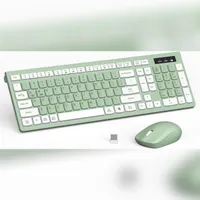
You may also want a keyboard from here on out, and to keep things relatively cheap, I recommend an affordable keyboard and mouse combo to save on costs:
3: Create your SteamOS recovery media
This step is essential for resizing your internal drive later. It does not wipe your device and will only be used to safely manage partitions when SteamOS is not running.
Valve provides an official SteamOS recovery image, and you can create this boot media on either SteamOS or Windows. Use whichever system is easiest for you.
You will need a USB stick or microSD card with at least 8GB of storage; however, Windows recommends at least 16GB, so if you plan to just use one USB here, keep this in mind.
- Download the SteamOS image by clicking here.
- Insert your USB stick or microSD card.
- On Windows, download and install Rufus from here.
- On SteamOS or Linux, download and install Balena Etcher from here.
- If you are using Windows, follow the steps by clicking here.
- If you are on SteamOS or Linux, click here to follow the steps.

3a: Using Windows to create boot media


If you are using Windows to create your boot media, follow the steps below:
- Download the SteamOS image by clicking here.
- Insert your USB stick or microSD card.
- Download and install Rufus from here.
- Open Rufus.
- Ensure that your USB Drive is selected under Device.
- With Rufus open, select the Steamdeck_repair img file.
- Make sure that "List USB Hard Drives" is selected.
- Under "Partition scheme," select MBR.
- Under the "Target system" option, select BIOS (or UEFI-CSM).
- Now press Start.
- Choose Ok when prompted that all data on the USB Drive will be lost.
3b: Using SteamOS/Linux to create boot media


If instead of Windows, you're choosing to use SteamOS/Linux then you can follow the steps below to create your recovery media:
- Download the SteamOS image by clicking here.
- Insert your USB stick or microSD card.
- Download Balena Etcher from here.
- Scroll down and choose the 64-bit option.
- Go to the download location, right-click on your Balena Etcher download, and select Extract.
- Extract somewhere easily accessible.
- Once extracted, open the extracted folder, and then select the balenca_etcher file.
- Choose the execute option.
4: Install the dual boot manager


This step is performed on your SteamOS device.
To make dual booting reliable and easy to manage, you will need a boot manager. This controls which operating system loads when you power on your device and prevents Windows from taking over the boot process.
For this guide, we are using SteamDeck rEFInd, a tool designed specifically for SteamOS devices. It allows you to switch between SteamOS and Windows from a clean menu and supports custom icons and backgrounds later on.
To install it, follow these steps carefully:
- Make sure you are still in Desktop Mode on SteamOS.
- Open the application launcher.
- Navigate to System and open Konsole.
- I’d recommend visiting this guide on your SteamOS device, and copying this install command:
- cd $HOME && rm -rf $HOME/SteamDeck_rEFInd/ && git clone https://github.com/jlobue10/SteamDeck_rEFInd && cd SteamDeck_rEFInd && chmod +x install-GUI.sh && ./install-GUI.sh
- Paste the command into the Konsole window.
- Press Enter and type your SteamOS user password when prompted.
- Confirm when asked to proceed with the installation.
- Once installed, the application will appear on your desktop.
5: Dual boot GUI setup

Once the installation is complete, open the application and review the available settings. This part is straightforward, but I will briefly walk you through what needs to be configured next.
- Open SteamDeck_reEFIned on your desktop.
- I won't change many settings here, but you want to make sure SteamOS is the default Boot option.
- Windows is already selected for Boot Option #2, so leave this as is.
- You can change other settings if you wish, such as the boot menu icons and boot menu background.
- Change the Timeout option to what you desire. I have chosen 10 seconds.
- Select the "Install rEFInd" option at the bottom of the GUI.
- Enter the password you created earlier.
- Then choose "OK" and wait for it to install.
- Then choose "Create Config," especially if you make any other changes.
- Then select the option "Install Config."
- Enter your password again.
- Restart your Steam Deck to see your custom boot screen.
6: Resize the internal drive for Windows
This step creates space for Windows by resizing your existing SteamOS partition. It is done from the SteamOS recovery environment to avoid conflicts with files currently in use.
Take your time here. Nothing is applied until you confirm it, and following the steps carefully avoids data loss.
If you can't load into the SteamOS recovery image, try a Micro SD Card or a different USB stick.


- To begin, make sure your Steam Deck is fully powered off.
- Insert your SteamOS recovery USB or microSD card.
- Hold the Volume Down button, then press and hold the Power button.
- Release both once the boot menu appears.
- Select your USB or microSD recovery media from the list.
- Wait for the SteamOS recovery desktop to load.

Once on the recovery desktop:
- Open the application launcher in the bottom left corner.
- Navigate to All Applications and scroll down.
- Open KDE Partition Manager.
- Select your internal drive from the list on the left side.
- Locate the ext4 home partition. This is where SteamOS is installed.


To resize the partition:
- Right-click the ext4 home partition.
- Select Resize/Move.
- Use the slider to reduce the partition size based on how much space you want to allocate to Windows.
- You can also type in how big you want your new partition size to be.


Once resized:
- Click OK to confirm the new size.
- You will now see unallocated space below the SteamOS partition.
- Right-click the unallocated space and select New.
- Choose NTFS as the file system.
- Confirm the changes.
- Click Apply in the top left corner and wait for the process to finish.


When complete, you should see a smaller SteamOS partition and a new NTFS partition ready for Windows.
Shut down the Steam Deck and remove the SteamOS recovery media. You will use this new partition in the next step when installing Windows.
7: Create your Windows boot media


This step mirrors the SteamOS recovery media process, but this time you will be creating boot media for Windows 11. The overall process is the same, with the only difference being the file you use.
For this guide, I will cover both the Windows and SteamOS or Linux methods, as the steps are very similar. If you followed Step 3, this should feel familiar.
You can safely boot back into SteamOS after the previous step to create your Windows 11 boot media. For this guide, I used a separate USB drive and kept my SteamOS recovery image intact.
- Download the Windows 11 ISO from Microsoft’s official website.
- Insert your USB stick into your PC or SteamOS device.
- Download and install Rufus or Balena Etcher if it is not already installed.
- Open Rufus or Balena Etcher.
- Make sure your USB drive is selected under Device.
- Select the Windows 11 ISO file you downloaded.
- Leave the default settings unless prompted otherwise.
- Click Start.
- Confirm that all data on the USB drive will be erased when prompted.
Wait for the image writing process to finish. This can take several minutes.
Once complete, safely eject the USB drive. You will use this Windows boot media in the next step to install Windows onto the partition you created earlier.
8: Installing Windows on Steam Deck
With your Windows boot media ready and your internal drive partitioned, it is time to install Windows on your Steam Deck. This part is straightforward, but there is one important installer option to watch for.
- Power off your SteamOS device.
- Insert the Windows 11 boot media you created earlier.
- Hold the Volume Down button, then hold the Power button down.
- Release both once the boot menu appears
- Select your Windows USB drive from the list.
- Wait for the Windows installer to load; this can take some time.
Once the Windows installer appears, rotate your Steam Deck into portrait mode. This makes the setup screens easier to use.
It is normal for Windows to be in portrait mode on boot and during setup.


- Select Install Windows.
- Accept the license terms when prompted.
- If asked for a product key, select "I don't have a product key."
- Choose Windows 11 Pro when prompted, then select Next.
- Choose the option to install Windows only.
- Locate the NTFS partition you created earlier.
- Select this partition and choose Next.
- Do not delete or format any other partitions.
Windows will now begin installing. This usually takes a few minutes, and the Steam Deck will restart automatically.
After the restart, the Windows setup process will continue.
- Connect to WiFi when prompted, if available, or connect via Ethernet using the USB-C hub.
- Alternatively, you can select the I don't have internet option if available.
- Follow the install process, selecting your region, keyboard layout, etc.
Once setup completes, Windows will load to the desktop, likely still in portrait mode. This is expected and will be fixed in the next step.
9a: Downloading Windows drivers
This step applies to Steam Deck only. If you are using another SteamOS device, you should already be good to go.
For Steam Deck, Valve provides official Windows drivers for each Steam Deck model. These are required to ensure Windows runs correctly on the device. You can follow the instructions here:
- Download all of the Windows drivers for your specific Steam Deck model from the official page.
- Once downloaded, extract each folder.
- Copy each driver folder to a USB drive and keep it somewhere easy to access.
- You will need this USB drive in the next steps when installing the drivers in Windows.
Very importantly, you must also download the Dual Boot Fix tool. This step is required to prevent Windows from automatically bypassing the dual-boot menu after restarts.
Download the Dual Boot Fix from here and copy it to the same USB drive as your Steam Deck drivers.
If the download link does not work, the tool is also available on the SteamDeck rEFInd GitHub page by scrolling down to the Windows section.
You will run this tool later from within Windows to ensure the rEFInd boot menu always appears correctly.
9b: Installing Steam Deck Drivers
Once Windows has finished installing, several core features will not work correctly until the proper drivers are installed. This is expected and easy to fix.
Before starting, make sure you know whether you are using a Steam Deck LCD or Steam Deck OLED. The driver sets are slightly different.
It is also normal for Windows to be in portrait mode on boot and during setup.
You can download the drivers here if you haven't already.
- Once the drivers are downloaded, extract each folder.
- Put the extracted folders onto your USB drive.
- Insert the USB drive containing the Steam Deck drivers into your Steam Deck.
- Next, I highly recommend following the instructions for your Steam Deck on Valve's website, here.
Once all drivers are installed, restart Windows.
After rebooting, graphics, Wi Fi, Bluetooth, audio, and SD card support should all be working correctly.
The next step focuses on fixing the dual-boot priority, so Windows does not bypass the boot menu.
10: Fixing problems introduced by Windows
This step is required to stop Windows from bypassing the dual-boot menu after restarts. Without it, Windows can take control of the boot order and load automatically.
You should have already downloaded the Dual Boot Fix tool and placed it on a USB drive in an earlier step.
To apply the fix, follow these steps while booted into Windows:
- Insert the USB drive containing the Dual Boot Fix tool.
- Open the folder and locate the file named Setup_rEFInd_Windows_RunAsAdmin.
- Right-click the file and select Run as administrator.
- Confirm any prompts that appear.
The script will run briefly and close automatically once complete. This creates a scheduled task in Windows that ensures the rEFInd boot menu is always placed at the top of the boot order.
Once finished, leave Windows running and continue to the next step.
11: Final Windows configuration for Steam Deck
This step helps prevent graphical issues when booting into Windows.
- Right-click the Start button and type Run and press Enter.
- With the Run dialog box open, type msconfig
- Press Enter or OK.
- Open the Boot tab.
- Check the option for No GUI boot.
- Select Apply, then OK.


Once this is done, shut down the Steam Deck completely.
Turn back on the device and load in to SteamOS and follow these instructions:
- Open the rEFInd GUI from the desktop.
- Select Create config.
- Select Install config and enter your password when prompted.
- Restart the Steam Deck.
You should now see the dual-boot menu on startup, allowing you to choose between SteamOS and Windows with everything configured correctly.
If you prefer a video walkthrough, this guide is based on an older video created by Deck Wizard. However, this version has been updated and modernised, with several tweaks made to reflect current tools and best practices.

Follow Windows Central on Google News to keep our latest news, insights, and features at the top of your feeds!

