


If you just got a Steam Deck, congratulations and welcome to the Steam Deck family!
But, new Steam Deck owners, before you dive into any gaming sessions, there are some things you should do first. While Valve's handheld makes portable gaming possible, it isn't a very powerful device, so you'll want to adjust in-game settings as well as system settings to get the best performance possible.
Here are the things you should do first after getting your Steam Deck.
1. Fully update your Steam Deck

You'll get the best performance from your Steam Deck if its software is current and up-to-date. As such, the very first thing you want to do is manually update your handheld gaming PC. Here's how to do that.
- Press the Steam button.
- Select System.
- Where it says "Software Updates," either tap Apply or Check for Updates.
- Finally, if there are updates, select Restart.
After your Steam Deck has restarted, it will have all of the latest updates installed. You're well on your way to getting your handheld set up and ready for use.
2. Install Decky Loader and maybe even NVIDIA GeForce NOW to access other game services and run games the Steam Deck can't

Out of the box, the Steam Deck's Gaming Mode is really only designed to interact with your Steam library, but the homebrew Decky Loader plugin makes it possible to easily access other game services such as Epic Games, Ubisoft Connect, and more.
I have a whole other Deck Loader installation guide for Steam Deck with step-by-step instructions and pictures if you want help with that.
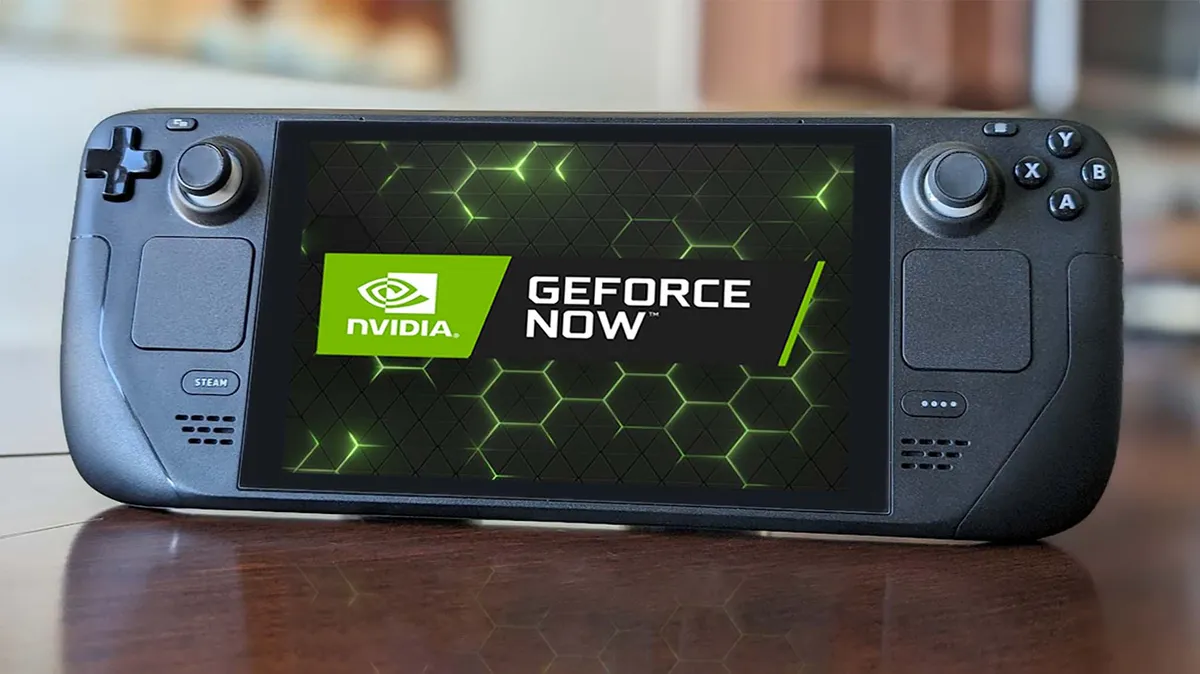
As for NVIDIA GeForce NOW, this is a subscription service that allows you to run the games you already own on one of NVIDIA's powerful servers.
In other words, even if the Steam Deck isn't powerful enough to play a game locally, you can run it smoothly on your handheld via the cloud as long as you have a good enough internet connection.
If you want help with that, check out my guide on how to set up NVIDIA GeForce NOW on Steam Deck.
3. Increase Steam Deck VRAM when playing graphically intensive games

If you want to get the best performance for more graphically advanced games, then you'll want to manually adjust VRAM (Video Random Access Memory) on your Steam Deck. VRAM refers to the amount of fast-access memory that's dedicated to your graphics card.
My colleague wrote a guide on how to change VRAM on the Steam Deck, so you can follow his step-by-step instructions. This does require you to go into the BIOS.
4. Launch games into Proton Experimental Mode for better performance

Sometimes, a game might not run well or might not run at all on Steam Deck's basic Proton mode, but it might be able to run via Proton Experimental.
Proton is a compatibility layer that allows games that were designed for Windows to operate via the Steam Deck's Linux-based operating system. Meanwhile, Proton Experimental is a mode that tests additional features and patches, which is why some games might work when it's in play.
How to turn on Proton Experimental Mode:
- Press the Steam Button and navigate to your Library.
- Select the game you want to play (Download it if it isn't already).
- Instead of pressing Play, tap the ⚙️ Settings icon on the right side of the screen.
- Select Properties.
- Tick the box next to where it says, "Force the use of a specific Steam Play compatibility tool."
- Tap the dropdown below and put it on Proton Experimental.
- Press B a few times to back out to your game.
- Press Play and the game should run in Proton Experimental Mode.
5. Enable FSR (when possible) and adjust game settings

Most simple pixel art games will run just fine on the Steam Deck, but you'll likely need to make adjustments when playing more graphically demanding titles on this handheld.
For the most part, you'll want to put most game graphics settings on low or a Steam Deck preset, if that's available. Doing this will help the game run more smoothly and could reduce or eliminate any lag or stuttering you initially encounter.
Another helpful tip is to turn on FSR, AMD's FidelityFX Super Resolution, when it's offered. This technology improves performance by rendering games at a lower resolution and then upscaling them, so they still look good.
Here's how to turn on FSR on Steam Deck:
- Within the game's graphics settings, reduce resolution to 1280x720 and make it Windowed rather than Full Screen.
- Now, find the upscaling option and make sure to enable FSR.
- You can verify that FSR is on by pressing the QAM button (...) to bring up the side menu.
- Then go to the Performance tab and put the slider to 4 on the Performance Overlay Level.
With that all done, your FSR-compatible games should run a bit smoother, and the overlay will help you verify whether or not FSR is actually on or not.
If you don't want to see the Performance Overlay, simply open the side menu again and put the Performance Overlay Level back down to Off.
6. Adjust Steam Deck TDP and Frame Limit based on the games you're playing

TDP (thermal design power) is something that can be adjusted on your Steam Deck to determine how much power your device draws from the CPU and GPU. Operating at a lower TDP allows your Steam Deck's battery to last longer, but more CPU-intensive or graphically demanding games require more power to run smoothly — so the trick is finding a balance between power and battery life when possible.
Meanwhile, frames per second refers to how fast images are taken and displayed on the screen. Simpler games don't need a high frame rate, but more intensive, competitive games like first-person shooters need higher frame rates to reduce input lag and offer smoother motion clarity.
EXAMPLE: A Pixel art game like Stardew Valley can typically run at 3W-6W TDP with frame rate set to 30FPS to improve battery life. Whereas, AAA games like Cyberpunk should be played at max 15W and 40-60FPS, depending on your settings.
Here's how to adjust frame rate and TDP on Steam Deck:
- Press the Quick Access Menu (QAM) button (...) on the right side of the Steam Deck.
- Select the ⚡Performance tab.
- Use the Frame Limit slider to change between 10FPS and 60FPS.
- Use the TDP Limit slider to change between 3W and 15W.
7. Consider upgrading the SSD instead of using a microSD card
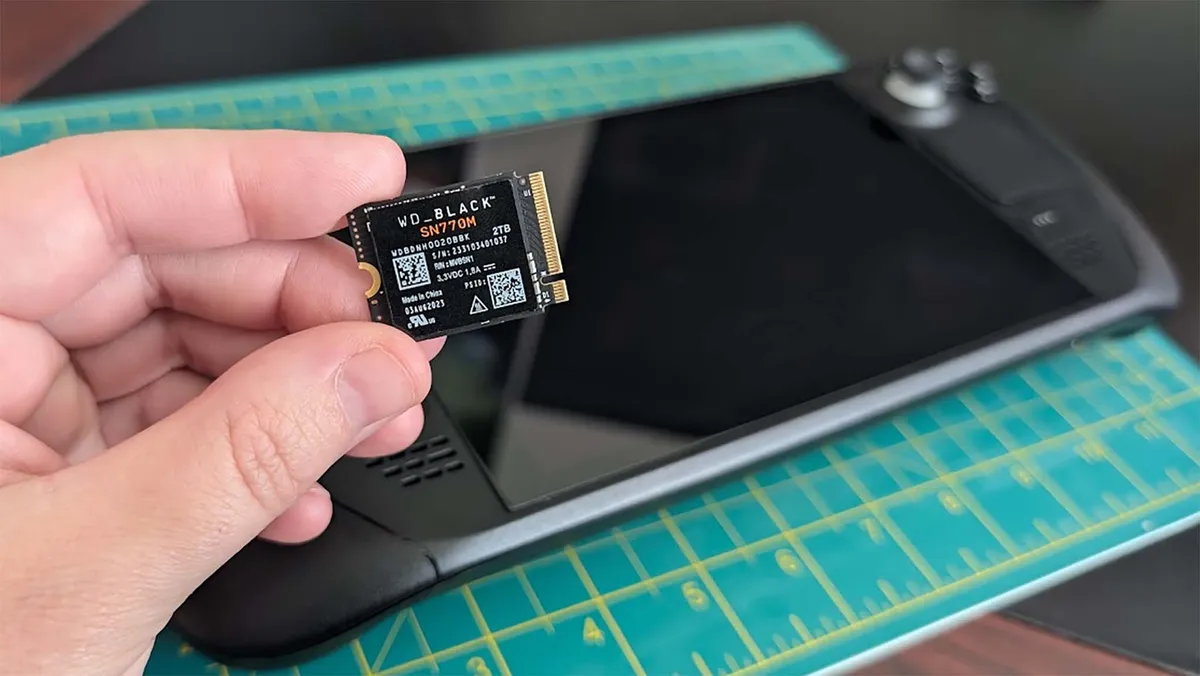
Depending on which model of Steam Deck you received, you likely have a 256GB, 512GB, or 1TB capacity for your game files. If you want more storage room, your two main options are a microSD card or upgrading the SSD. The first option is an easy fix, but the second one provides better performance.
Storage-wise, 1TB or higher is ideal if you play a lot of games, so that's one reason to upgrade. Another is that you can make your Steam Deck load and save faster if you upgrade the SSD.
In case you didn't know, the SSD that comes installed in the Steam Deck tends to only hit up to 2,000MB/s, but there are faster options on the market that will make your handheld run even quicker, such as the Crucial P310 1TB SSD, which offers up to 7,100MB/s read speed.
If you do decide you want to permanently improve your device's storage, check out my guide on how to upgrade the Steam Deck SSD.
BONUS: Use Desktop mode to surf the web and much more

Your Steam Deck isn't just a handheld; it's more like a portable, Linux gaming laptop that offers controller functions instead of a keyboard. There's even a desktop mode where you can go to browse the web, install/uninstall programs, explore files, and much more.
This is also where you'll need to go to install certain programs that aren't compatible with Steam Deck out of the box. If you want, you can even check out our guide on how to make Steam Deck dual-boot Windows 11 and SteamOS.
Here's how to get to the Steam Deck desktop:
Steam button > Power > Switch to Desktop
NOTE: You can get back to the typical handheld mode by tapping the white and blue icon on the desktop that says "Return to Gaming Mode."
Our favorite Steam Deck accessories
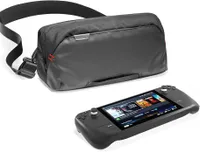
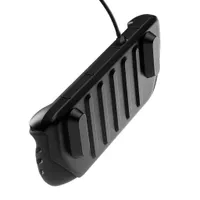
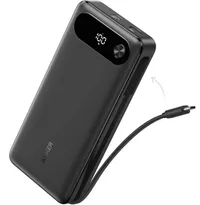
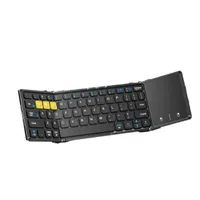
Accessories can improve your Steam Deck experience by quite a bit. These are my most recommended peripherals, whether you want more storage space for your games, case protection, a TV docking station, or other useful accessories.
![iVoler Steam Deck Screen Protector [2-Pack]](https://cdn.mos.cms.futurecdn.net/sxd7LBVpkMZhwiRkwjrPLL-200-80.jpg.webp "iVoler Steam Deck Screen Protector [2-Pack]")


Get your Steam Deck ready for play
There you have it, seven things you should do before truly jumping into a game on your brand-new Steam Deck. You'll appreciate taking the time to adjust system and individual game settings if you want to get the very best performance possible.
It's also just a good idea to familiarize yourself with the QAM and Desktop mode, so you know what kind of things you can even do on the Steam Deck.
Of course, I highly recommend grabbing some accessories to enhance your gaming sessions further. For example, I usually play my Steam Deck in handheld mode, but there are times when I prefer to play it on my TV, and that's when I love having my docking station. Then there's the added protection you can get from screen protectors and cases, so don't skip out on those.

So, now we want to hear from you. What was the main reason you wanted your Steam Deck? Is it your main gaming device, or do you only use it for something specific? Tell us about it in the comments.

Follow Windows Central on Google News to keep our latest news, insights, and features at the top of your feeds!

