Microsoft is now testing an early preview of the upcoming Xbox Cloud Gaming interface, and anyone can access it, whether or not they have a subscription. In this guide, I'll show you how to access right now.
Although the Xbox Cloud experience has had a web dashboard, the new interface brings it closer to the design you can access on the Xbox console, making it familiar to anyone accustomed to the console experience.
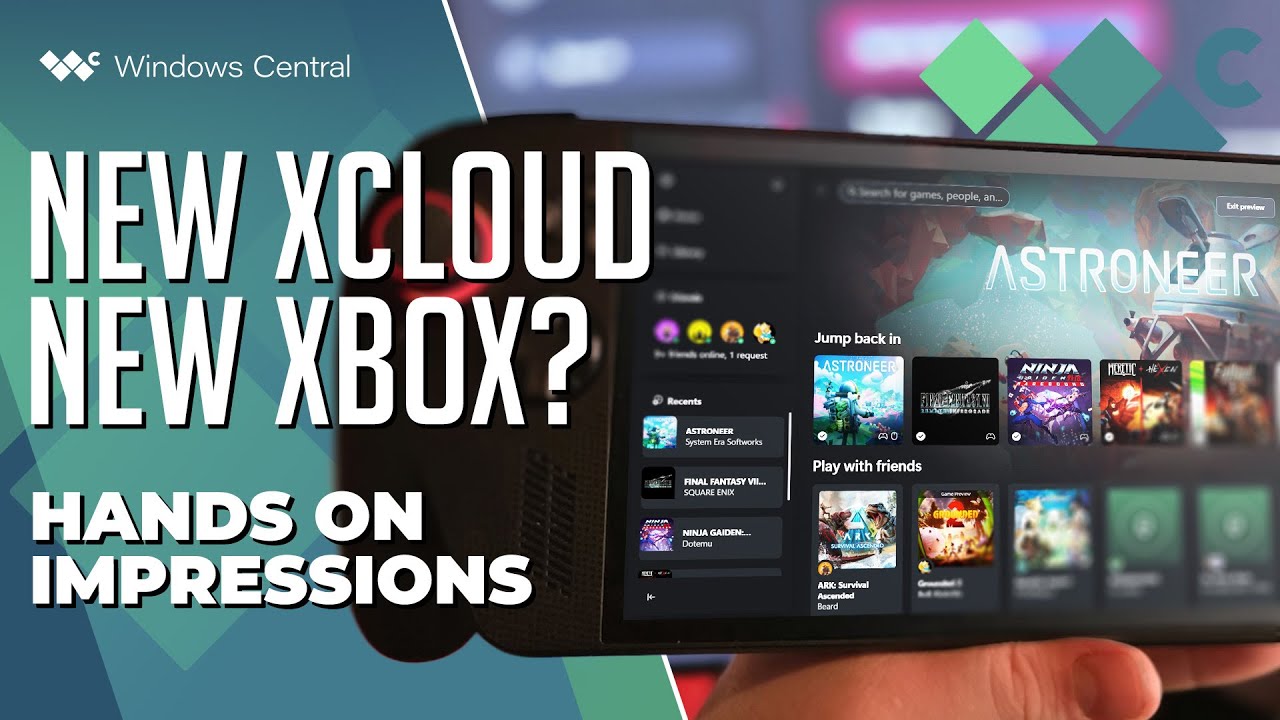
However, the new interface also makes it easier to use for anyone, regardless of whether they used the console before.
Since this is an early preview, it's not automatically available to everyone. You actually have to go through a set of steps to opt in to the preview.
In this how-to guide, I'll outline the easy steps to opt in to designing for playing Xbox games in the cloud.
How to enable the new Xbox Cloud Gaming redesign on your account
To enable and access the new cloud experience to play Xbox games, use these steps:
- Open Microsoft Edge.
- Open the Xbox Play page and sign in with your credentials.
- Quick tip: Anyone can access the experience, including without a subscription. It goes without saying that a subscription is needed to play games.
- Click the profile menu in the top-right, and choose the Settings option.

- Turn on the "Preview features" toggle switch to access the new Xbox Cloud experience.

- Click the Yes button.
- Get a cup of coffee and wait 10 minutes (this is important).
- Open the Play.Xbox.com page in the browser to access the gaming dashboard.
Once you complete the steps, you'll have access to the new Xbox Cloud gaming web experience, which the company is shipping as a public preview.
If you want to switch to the now-legacy experience, click the "Exit preview" button in the top-right of the screen.

You can go even a step further. If you're using Microsoft Edge, you can also install the web experience as an app on your Windows 11 device. You only need to click the "Install" button from the address bar.
Switch between modes
Finally, you can also switch the current mode (known as "Full Screen Mode") to Desktop Mode, which gives you a more app-like experience with a sidebar, such as the Xbox app on Windows 11.
While in the new Xbox Cloud Gaming experience, use these steps:
- Click the Xbox button.
- Click on Settings from the bottom-right.

- Click on Appearance.
- (Option 1) Select the Desktop Mode option for a classic view.

- (Option 2) Select the Full Screen Mode option to use the modern view.
After you complete the steps, you will have access to a more Xbox app-like experience.
As Xbox keeps refining its cloud ecosystem, this redesigned web experience feels like another step toward a platform that works the same no matter where you play. The preview is still evolving, but if this is the direction Microsoft is heading, cloud gaming is about to feel a lot more like a first‑class part of the Xbox experience rather than an optional side path.
What are your thoughts on the new UI? Let me know in the comments.
FAQs about accessing the new Xbox Cloud Gaming UI
These are common questions regarding the access to the new Xbox Cloud Gaming experience.
What is the new Xbox Cloud Gaming interface?
The new Xbox Cloud Gaming interface is a redesigned web experience that closely mirrors the layout and navigation of the Xbox console dashboard. It introduces a cleaner UI, improved discoverability, and optional Desktop and Full Screen modes for different play styles.
Is the new Xbox Cloud Gaming experience available to everyone?
Yes. Anyone can access the preview as long as they sign in with a Microsoft account. However, an Xbox Game Pass Ultimate subscription is still required to actually play cloud games.
Do I need an Xbox console to use the new Xbox Cloud Gaming interface?
No. The experience runs entirely in a web browser. You do not need an Xbox console, controller pairing aside, to access or use the cloud gaming dashboard.
Why don’t I see the new interface right away?
The redesign is part of an early public preview. You must manually opt in by enabling the "Preview features" toggle in Xbox Cloud Gaming settings. After enabling it, Microsoft requires up to 10 minutes before the new interface becomes active.
Can I switch back to the old Xbox Cloud Gaming interface?
Yes. The preview is optional. You can revert to the legacy experience at any time by clicking the "Exit preview" button in the top-right corner of the dashboard.
More resources
For more helpful articles, coverage, and answers to common questions about Windows 10 and Windows 11, visit the following resources:
- Windows 11 on Windows Central — All you need to know
- Windows 10 on Windows Central — All you need to know

Follow Windows Central on Google News to keep our latest news, insights, and features at the top of your feeds!