


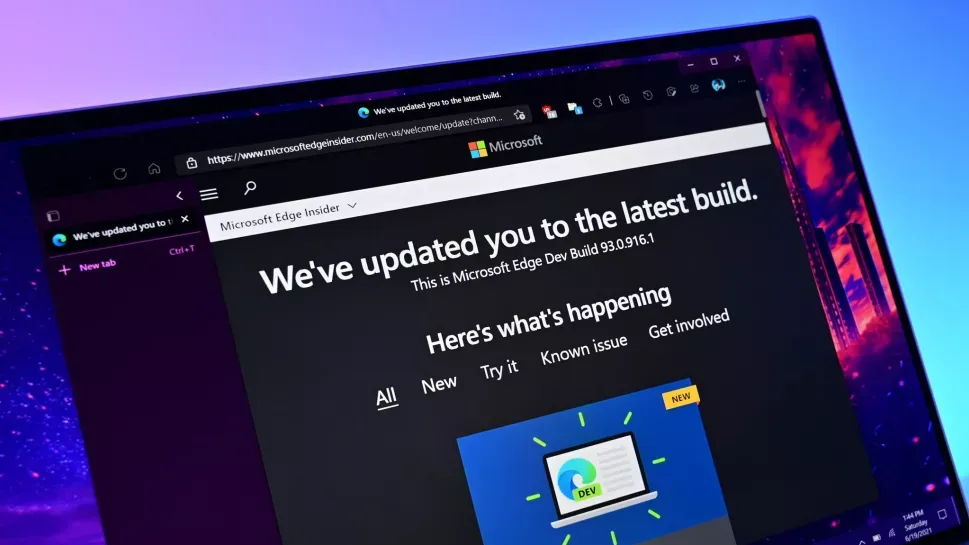
Microsoft Edge just received a significant update that should boost productivity for business users. The jump to Edge version 145.0.3800.58 also includes some handy features for non-business users.
Copilot actions in PDF reader now include buttons to "Summarize" and "Explain" documents. These features use AI to extract and summarize the most important data from PDF files and provide context for that information.
Another improvement to PDFs in Edge reduces the startup time of the Read Aloud experience.
An improved Autofill experience will prompt users to save information from an address on a form.
Perhaps the biggest change is that Edge now groups related domains together to make it easier to log in to sites. For example, you can save and use the same credentials for account.microsoft.com and office.microsoft.com.
View the full changelog ↴
Microsoft Edge Version 145.0.3800.58
Announcements
- Upcoming migration to improved V2 architecture for Workspaces.. Workspaces, introduced in Edge in 2022, allows users to create durable sets of tabs that can be saved and shared with others. In order to improve reliability and performance of this feature, the following changes are being made:
- Migrating data for saved Workspaces from OneDrive/SharePoint to Edge Sync service
- Removing the collaboration/share functionality of this feature
- For organizations who have disabled Sync through policy, the existing v1 Workspace data will still be migrated to the new architecture. New v2 Workspaces created after migration will not sync across devices and will remain local to each device. This update will occur on a progressive rollout beginning in Edge Stable v145 and will fully roll out starting with Edge Stable v146. Opting out in v145 can be achieved by contacting Microsoft CSS before rollout begins.
Feature Updates
- Cross Tenant Support using Intune MAM. Edge for Business extends its capability to deliver Intune App Protection Policies via Intune MAM. Organizations are enabled to apply data loss prevention controls to Edge for Business profiles even on devices managed by another tenant. This capability enforces Intune MAM policies-such as clipboard boundaries, watermarking, and protected downloads-within the Edge work profile, ensuring sensitive data remains governed by your tenant. When enabled, downloads initiated in Edge are redirected to OneDrive for Business instead of local storage, and leak controls for screenshots and DevTools activate when data protection settings are applied. This approach secures cross-tenant scenarios like contractors or mergers without requiring additional apps or disrupting the end user experience. Note: This feature is in public preview. For more information, see Cross-tenant support using Intune MAM
- Update to Copilot icon in toolbar. The Copilot icon now includes the label “chat” next to it on the toolbar.
- Update to the AutoplayAllowed policy. The AutoplayAllowed policy has been updated and when the policy is configured to Disabled, Edge will now set media autoplay to "Block" which will disable autoplay on all sites. Previously, configuring the policy to Disabled, set media autoplay to "Limit" which still allowed autoplay on sites with high media engagement or active WebRTC streams.
- Navigation management for Progressive Web Apps. Microsoft Edge has improved how a Progressive Web App (PWA) handles user navigation. When a user clicks a link, the browser will determine whether it should launch the installed PWA or open a new browser tab to give users a more seamless experience.
- Validate Edge builds early with enterprise preview. Enterprise preview provides a simpler way for admins to flight pre-release Edge builds to their users. To reduce friction and bolster usage, users will receive pre-release builds directly inside of their Stable Edge application. Admins can allow users to easily opt-out of the preview experience, using built-in rollback to switch between their pre-release and stable channels with ease. Microsoft 365 admin center users can configure the feature, view their flighting population, and receive personalized recommendations all in one place. Note: Part of this experience is in public preview and can be accessed by opting in to targeted release in the Microsoft 365 admin center. For more information, see Get started with Enterprise Preview in Microsoft Edge.
- Add "Summarize" and "Explain" Copilot actions in PDF reader. Existing "Ask Copilot" integration in the built-in PDF reader has been expanded by introducing two new actions - "Summarize" and "Explain." These options will allow users to generate a concise overview or simplify complex content within a PDF or selected portion. The new actions build on the existing "Ask Copilot" integration and follow the same enterprise controls and policies.
- A Refreshed Profile Flyout Experience for Better Clarity and Actionability. The Microsoft Edge profile flyout is updated to deliver a cleaner, more intuitive experience. The refreshed design makes it easier to distinguish between work and personal profiles, manage credentials, and quickly access key settings-all within a polished interface that supports modern browsing needs. With streamlined sign-in, clearer profile types, and organization branding preserved, this update enables a more efficient and trustworthy experience for customers.
- Securely enable AI generated applications. Leverage the latest AI advancements to build prototypes, learning applications or interactive reports using your favorite tools in Edge without worrying about your data. This extension enables apps to leverage some new security improvements for safely executing AI generated code. Admins can control availability to this feature using the EdgeSafeHostingExtensionEnabled policy.
- Watermarking Protection in Microsoft Edge for Business. Watermarking Protection in Microsoft Edge helps organizations visibly reinforce data protection policies by overlaying a persistent watermark on sensitive content viewed in the browser. This feature is designed to deter unauthorized sharing, support compliance efforts, and increase user awareness when handling confidential information. For more information, see Watermarking Protection. Note: This experience is in public preview and can be accessed by opting in to targeted release in the Microsoft 365 admin center.
- Adding protection against malicious sideloaded extensions. Microsoft Edge will detect and revoke malicious sideloaded extensions.
- Improved Autofill experience in Microsoft Edge. When users fill in an Address on a form, they'll be prompted to choose whether to save it for future Autofill suggestions. This enhancement ensures Autofill data is saved intentionally by users and reduces unwanted entries as part of their Autofill suggestion.
- Protected Clipboard in Microsoft Edge for Business. Admins shouldn't have to choose between locking down copy/paste and risking data leaks. Protected Clipboard offers a smarter way for keeping sensitive data safe without disrupting user workflows. Leveraging Purview DLP policies to define trusted boundaries across managed cloud apps. Data inside those admin defined boundaries can stay protected while external data can enter if needed. Granular control for admins. Seamless productivity for users. For more information, see Protected Clipboard. Note: This experience is in public preview and can be accessed by opting in to targeted release in the Microsoft 365 admin center.
- Password affiliation service. Password autofill suggestions in Edge are currently based on top-level domain matching, which means the same credentials can be suggested on sites like account.microsoft.com and office.microsoft.com. With this feature, Edge groups related domains together across various desktop and mobile properties called affiliations. When a customer visits a URL, the Edge client will query the affiliations backend to obtain "affiliated groups" for that URL. The process involves sending a hash of the visited URLs to the service, which then returns a list of affiliated URLs and ensures that the relevant credentials will be displayed in the autofill suggestions across affiliated domains. Admins must use both the PasswordManagerEnabled and PrimaryPasswordSetting policies together to control access to this feature. Configuring both policies will allow admins to ensure no passwords will get saved, lookups for autofill will be completely disabled and affiliation endpoint will not be queried. Note: This is a controlled feature rollout. If you don't see this feature, check back as we continue our rollout.
- New policy to control profile editing. The EditProfileEnabled policy controls whether users can modify profile properties (such as the profile avatar) from the profile setting page. If the policy is enabled or not configured, the edit button is available and users can edit profile properties. If the policy is disabled, the edit button is disabled and users can't edit profile properties.
- Extensions monitoring in the Edge management service. The Microsoft Edge management service now allows admins to gain visibility into extensions installed across their managed users. From the extensions monitoring page, admins can see which extensions have been installed as well as manage user requests for blocked extensions. Note: This experience is in public preview and can be accessed by opting in to targeted release in the Microsoft 365 admin center. For more information, see Microsoft Edge Extensions Monitoring.
- Introducing a new policy that can enable/disable web app installation from the browser. Admins can control whether users can install web apps through the browser using the WebAppInstallByUserEnabled policy.
- Announcement page on update experience. Starting in Edge 145, Edge for Business will show a "What's New" page the first time the browser is launched following a major update. The page will help your users understand new features and how to use them for maximum productivity. Admins can control availability to this feature using the WhatsNewPageForEntraProfilesEnabled policy.
- Faster, more reliable Read Aloud in PDFs. PDF Read Aloud has been updated to significantly reduce time-to-start and improve reliability, while keeping the existing Read Aloud experience and entry points unchanged. This improvement is available only in the new PDF viewer in Edge.
How to update Microsoft Edge
Microsoft Edge can update on its own, but if you need to bump it to the latest version, there's a process to do so manually.
- Open Settings in Edge through the "..." menu and by clicking Settings.
- Click About Microsoft Edge in the left-hand panel (you may have to expand this through the hamburger menu).
- If there is an update ready to be installed, click Restart.
If Microsoft Edge is up to date, that section of Settings will say so and list the current version of Edge that is running.
We'd like to hear your thoughts
What do you think of Microsoft Edge in 2026? How does it stack up against other browsers?
Let us know in the comments below.

Join us on Reddit at r/WindowsCentral to share your insights and discuss our latest news, reviews, and more.

