PowerToys, the "Swiss Army knife" of Windows 11, is now available in version 0.102, introducing several features designed to improve your desktop experience.
This release adds Mouse Button Lock to make dragging and selecting items easier, while CursorHide automatically hides the mouse pointer under specific conditions. Command Palette also gets an update with quick access to frequently used commands. In addition, PowerToys expands its command-line and automation features, and ZoomIt now lets you use voice input to set image descriptions.
In this guide, I'll highlight the five new features and improvements in PowerToys version 0.102 and explain how they can help you get more out of Windows 11.
1. Mouse Button Lock for easy dragging and selection
Selecting large groups of items or dragging files across the desktop can get tiring when you have to hold a mouse button down for an extended period. Starting with version 0.102, PowerToys introduced Mouse Button Lock to make these actions easier.
When this feature is enabled, you can press and hold a mouse button briefly, then release it. PowerToys keeps the button virtually held down, letting you keep selecting items or dragging files without physically holding the button. To release the hold, simply click any mouse button.
Mouse Button Lock can help when you're working with large file selections, moving items, or doing tasks that require extended dragging. It can also improve accessibility for people who have difficulty holding a mouse button down for long periods.
You can enable the feature in PowerToys > Input & Output > Mouse Utilities by turning on the "Mouse Button Lock" toggle switch.
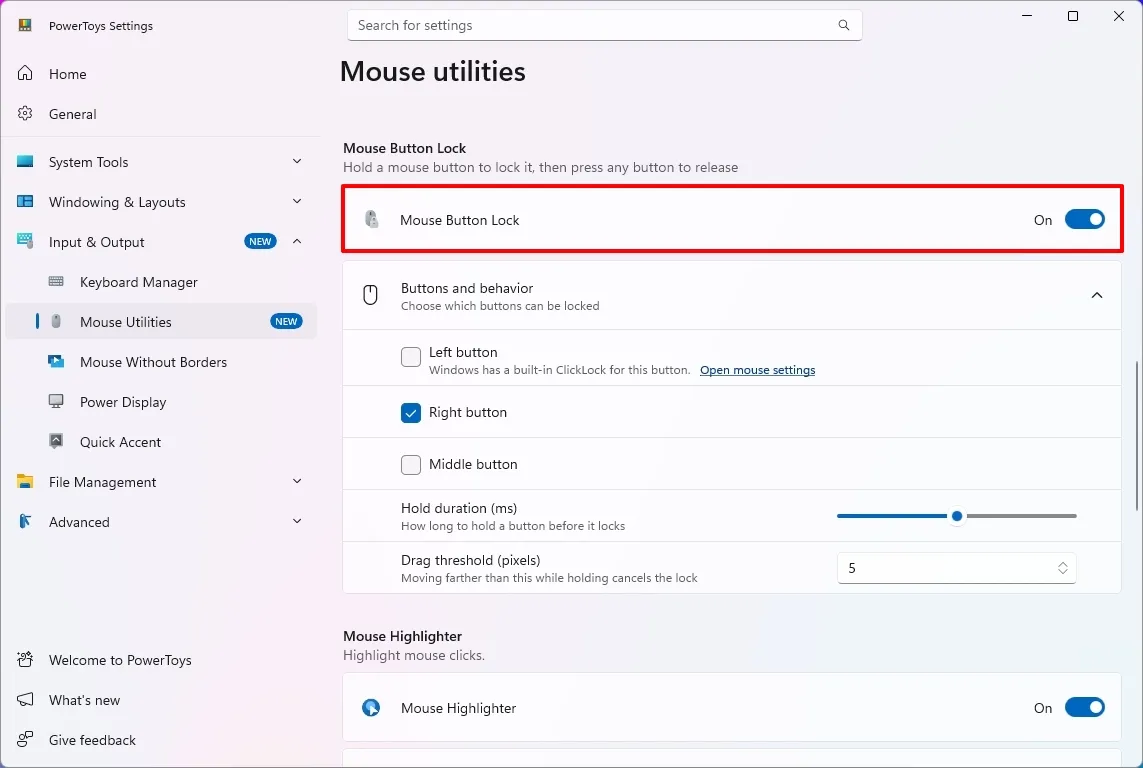
From the "Buttons and behavior" settings, you can decide whether the left, middle, or right button should lock while pressed.
The settings also let you choose the hold duration before the button is locked as pressed, and the drag threshold allows you to specify how far you can move the mouse before PowerToys cancels the Mouse Button Lock.
2. CursorHide for fewer cursor interruptions
PowerToys also introduces a second mouse utility, CursorHide, which lets you hide the mouse pointer while you're typing, after a period of inactivity, or both.
CursorHide is useful when the mouse pointer gets in the way of what you're doing on the screen. For example, hiding the pointer while typing makes it easier to focus on text without the cursor covering words or other elements.
You can enable the feature in PowerToys > Input & Output > Mouse Utilities by turning on the "CursorHide" toggle switch.
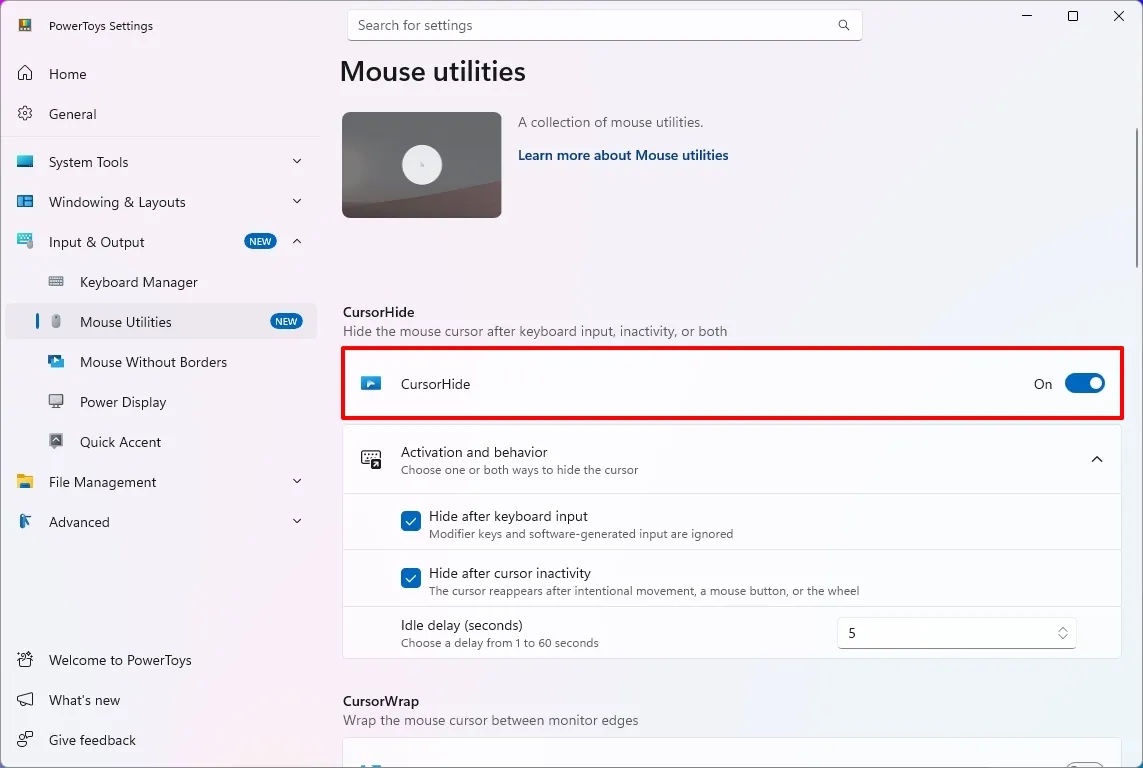
In the "Activation and behavior" settings, you can choose to hide after keyboard input and set the cursor to hide after a period of inactivity.
3. Command Palette quick access to favorites
If you use Command Palette, this update rolls out an update to Compact mode that lets you pin frequently used commands under the search box.
Once you pin an item, you can launch it with the "Alt + 1" through "Alt + 9" shortcut or select it without running it with the "Alt + Shift + number" shortcut.

It's also possible to drag items to reorder them, right-click to access more options, and display recent apps and commands.
4. PowerToys expands command-line support
PowerToys version 0.102 expands its command-line capabilities, allowing you to control more utilities, automate tasks, and retrieve information directly from Command Prompt or PowerShell.
The update adds CLI commands for Advanced Paste, Light Switch, Settings, Peek, and PowerDisplay. These commands let you run actions, manage light and dark mode settings, turn utilities on or off, preview files and folders, and retrieve display information in script-friendly formats.
These additions are especially useful for automating repetitive tasks, creating scripts, or controlling PowerToys utilities without opening their graphical interfaces.
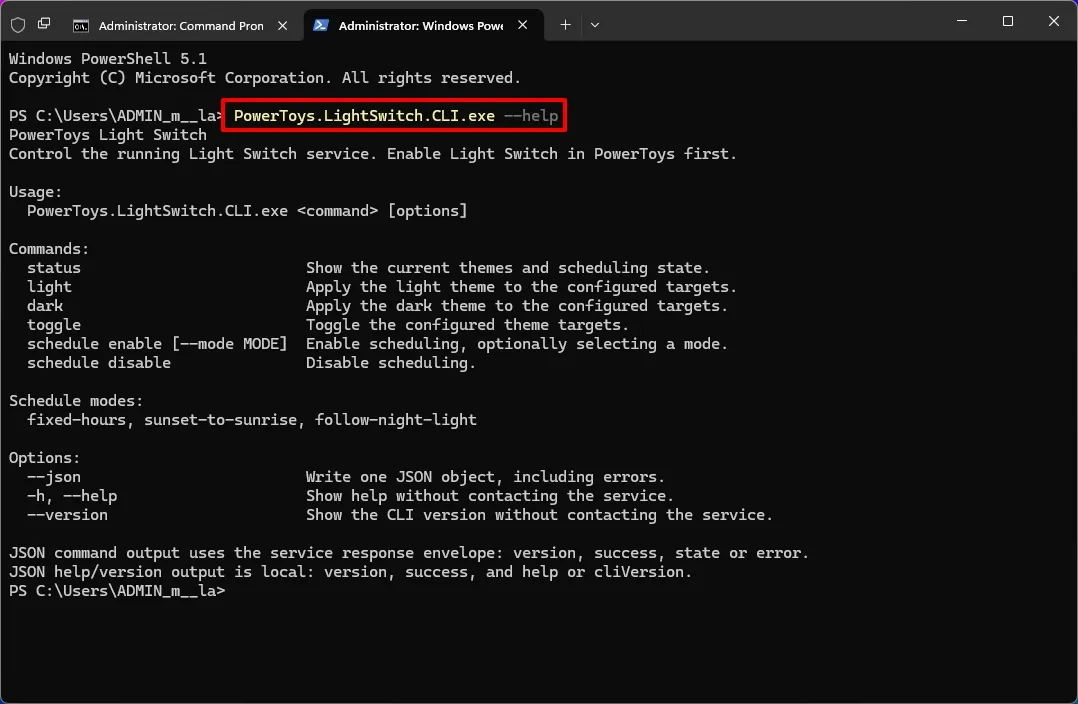
Here's a list of the new command-line support you can use with PowerShell:
- Advanced Paste: PowerToys.AdvancedPaste.CLI.exe
- Light Switch: PowerToys.LightSwitch.CLI.exe
- Settings: PowerToys.Settings.CLI.exe
- Peek: PowerToys.Peek.UI.exe
- PowerDisplay: PowerToys.PowerDisplay.CLI.exe
To learn about the options for each command, use the "--help" command. For example, PowerToys.LightSwitch.CLI.exe -- help.
If, for example, LightSwitch is enabled, you can switch to dark mode with the PowerToys.LightSwitch.CLI.exe dark command.
You can use the command to manage it, but you must enable the utility in PowerToys settings first.
5. ZoomIt adds screenshot dictation
Finally, ZoomIt now lets you dictate a description while capturing a screenshot, making it easier to document what's on the screen without typing the text separately.
To use the feature, open PowerToys > System Tools > ZoomIt, turn on the feature, and then under the "Snip" section, turn on the "Snip with dictation" toggle.
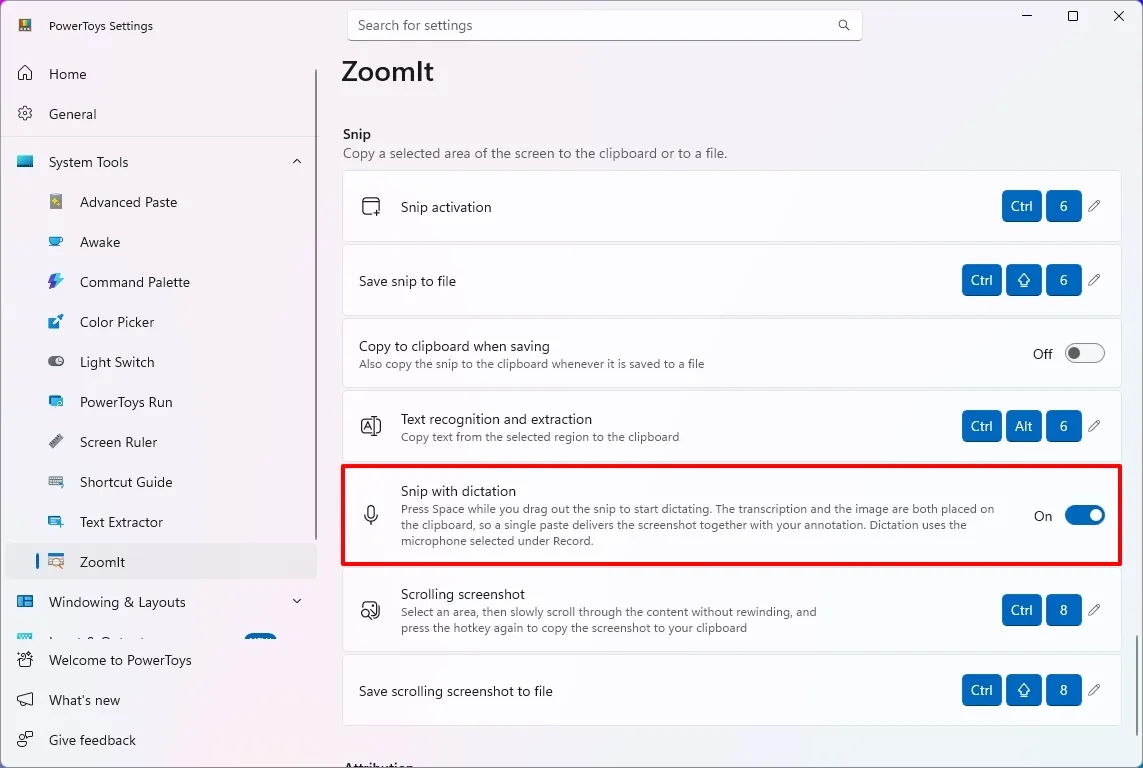
Once you have done that, drag to select an area of the screen, press the "Space" key, and describe what you're capturing. ZoomIt transcribes your speech locally, allowing you to paste the screenshot and its accompanying text together.
The feature uses the microphone selected in the "Record" settings.
Wrap up
PowerToys 0.102 is a surprisingly and unusually interesting update, despite the simple version-number change. The popular app serves as a clear reminder of how much Windows 11 continues to evolve thanks to community-driven tools — these additions make everyday workflows smoother and show how Microsoft’s open‑source ecosystem continues to fill gaps the OS itself doesn’t yet cover.
Whether you’re a power user or just someone who loves small quality‑of‑life upgrades, this release proves that Windows can still surprise you with clever, genuinely useful features.
What’s the most interesting feature in this rollout? Let me know in the comments!
More resources
Explore more in-depth how-to guides, troubleshooting advice, and essential tips to get the most out of Windows 11 and 10. Start browsing here:
- Windows 11 on Windows Central — All you need to know
- Windows 10 on Windows Central — All you need to know

Join us on Reddit at r/WindowsCentral to share your insights and discuss our latest news, reviews, and more.