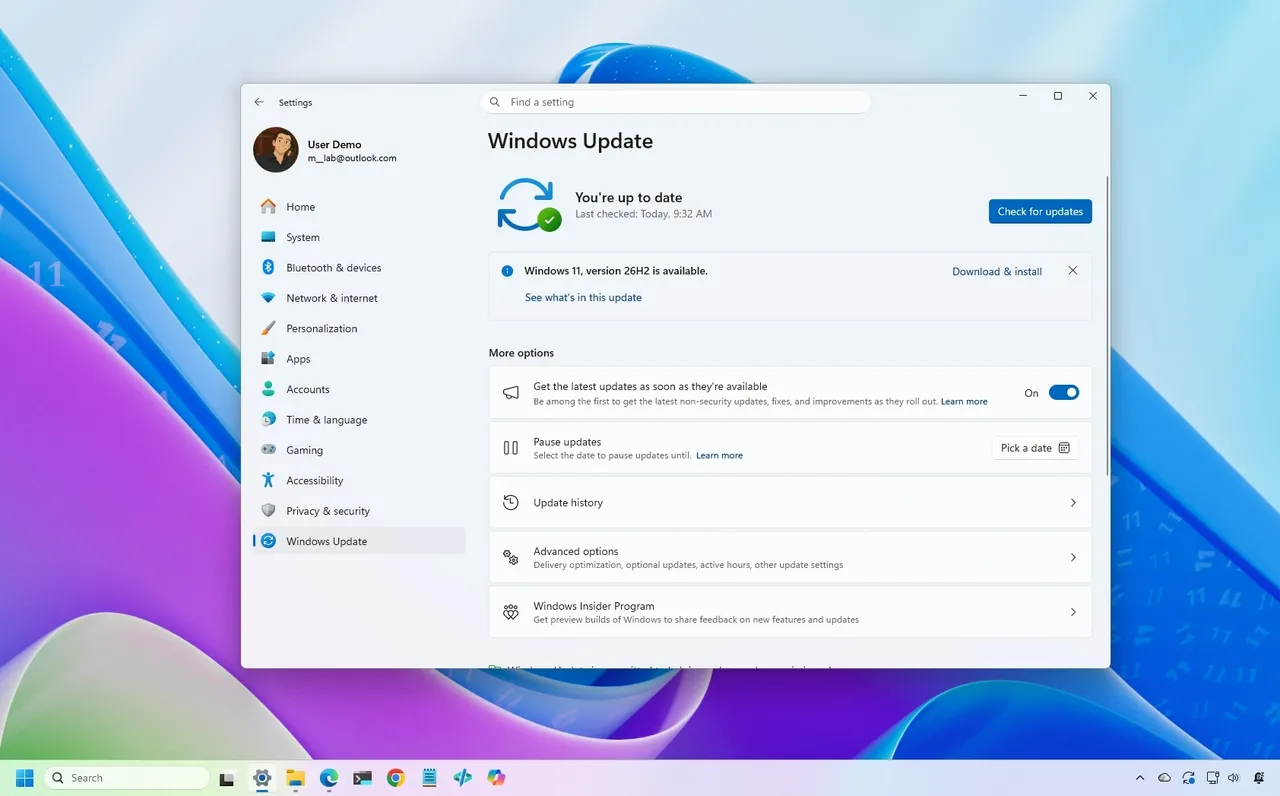
Microsoft is gradually rolling out the Windows 11 2026 Update (version 26H2) to compatible devices. However, it's an optional install, and if you want to install it early, you'll have to switch manually.
Windows 11 version 26H2 is a small update that doesn't require a full reinstall if your device is already running version 25H2 or 24H2. However, if your hardware is still running version 23H2 (or an older version), you'll need to perform an in-place upgrade with a full reinstallation.
Also, if you plan to upgrade from Windows 10, the computer will go through the full upgrade process as well. In addition, this new version will roll out in phases, starting with devices known to have a good upgrade experience, so not every device will receive the update in the early days.
If you don't want to wait, you can manually trigger the upgrade in at least four ways, including Windows Update, the Installation Assistant, the Media Creation Tool, and an ISO file.
In this how-to guide, I'll outline the steps to upgrade from any previous version to the Windows 11 2026 Update.
Important: Although this is a non-destructive process, something can still go wrong during and after the upgrade. Consider creating a temporary backup before proceeding. You've been warned.
How to install Windows 11 2026 Update from Settings
To install the new version of Windows 11 through the Windows Update settings, use these steps:
- Open Settings.
- Click on Windows Update.
- Turn on the "Get the latest updates as soon as they're available" toggle switch.
- Click the "Check for updates" button.
- Click the "Download and install now" button.
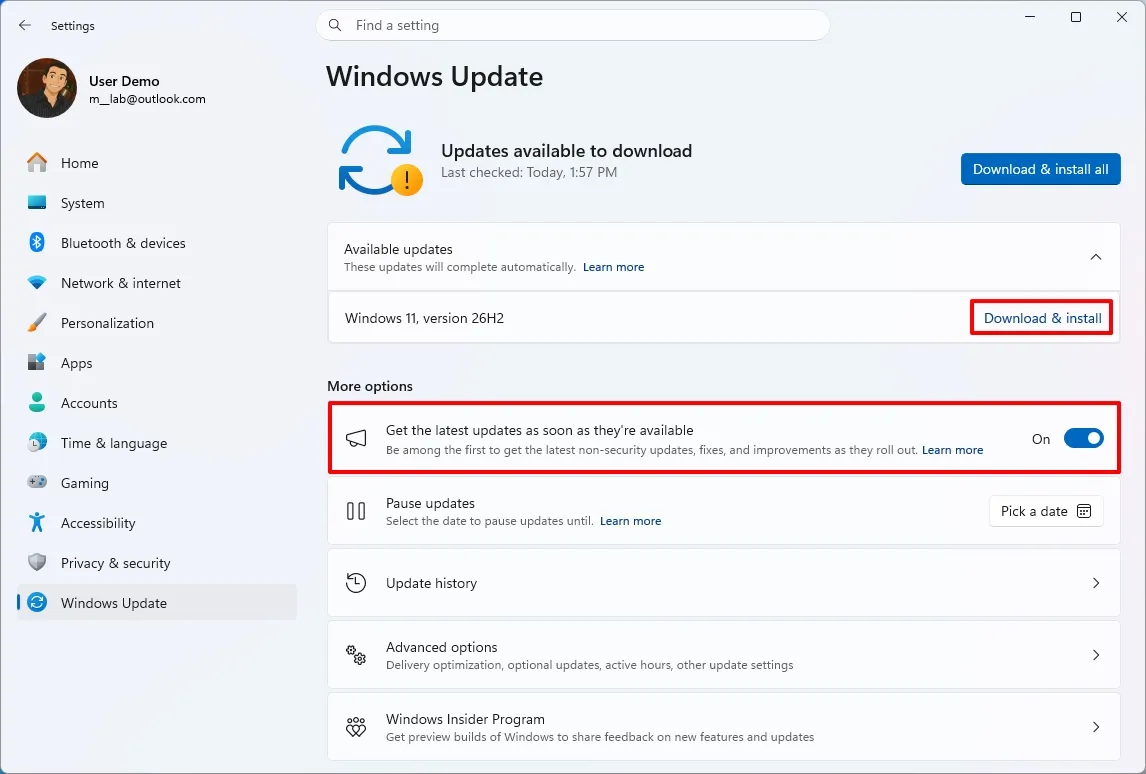
- Click the Restart now button.
After you complete these steps, the installation process will apply the update to the device without requiring a full operating system reinstall.
If the upgrade option isn't available, the update likely isn't ready for your system configuration.
Also, I don't recommend using a different upgrade method, as it may cause issues and require an unnecessary reinstallation.
How to install Windows 11 2026 Update from Installation Assistant
This method should only be used to upgrade a device running version 23H2 or Windows 10. If you use this tool on version 25H2 or 24H2, you'll trigger an unnecessary in-place upgrade.
To upgrade the system to the Windows 11 2026 Update with the Installation Assistant tool, use these steps:
- Open this Microsoft support website.
- Click the Download Now button under the "Windows 11 Installation Assistant" section.

- Quick tip: If you get a message that the latest version of the operating system is already installed, you likely downloaded an older version of the tool. If so, try downloading the Installation Assistant from this page.
- Double-click the Windows11InstallationAssistant.exe file to launch the tool.
- Click the "Get PC Health Check app" option to download the tool on the device (if applicable).
- Install the Get PC Health app following the easy on-screen directions.
- Open the Get PC Health app and click the "Check Now" button.
- Click the Refresh button on the Installation Assistant tool.
- Click the "Accept and install" button.
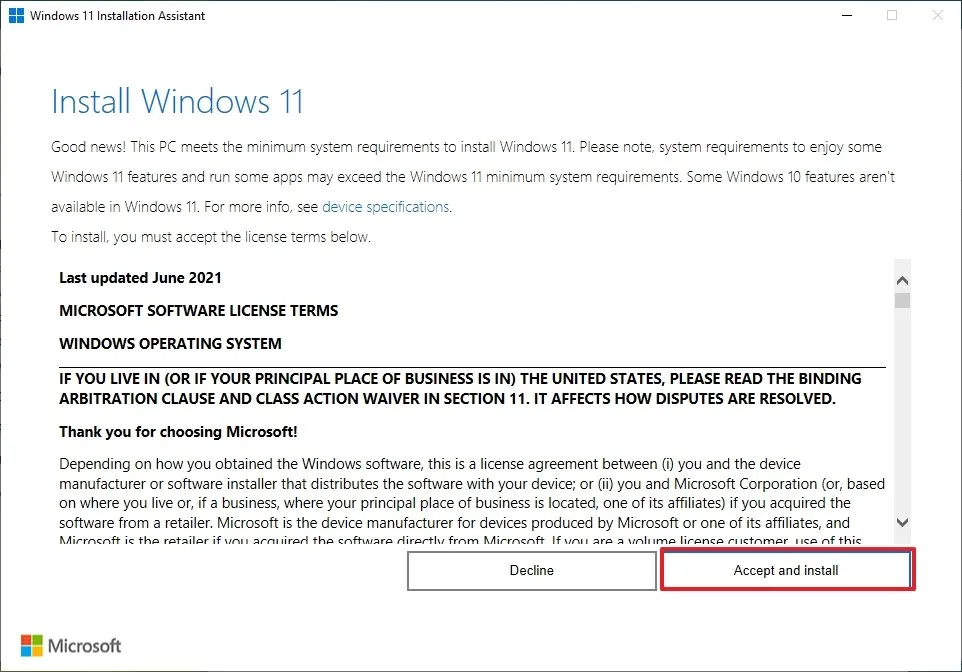
- Click the "Proceed with installation" button to begin installation.
- Click the Restart button.
Once you complete the steps, the tool will download the necessary files and install the new version of Windows 11, preserving your files, settings, and apps.
How to install Windows 11 2026 Update from Media Creation Tool
You should only use this tool when upgrading from an older version, such as 23H2, or Windows 10.
Although you can no longer use the Media Creation Tool to perform an in-place upgrade, you can use it to create bootable USB media to install the new version of the operating system.
This method will perform a complete reinstallation. If you're upgrading from version 25H2 or 24H2, you don't need this method. Instead, upgrade using Windows Update settings.
To use the Media Creation Tool to create a USB drive to upgrade a device, use these steps:
- Open the Microsoft support website.
- Click the Download Now button under the "Create Windows 11 installation media" section.

- Double-click the MediaCrationTool.exe file to launch the utility.
- Click the Accept button.
- Click the Next button.

- Select the USB flash drive option.

- Quick note: You will need a USB flash drive with at least 8GB of storage. This process will erase the drive, so back up any important information first.
- Click the Next button.
- Select the USB flash drive from the list.

- Click the Next button.
- Click the Finish button.
- Open File Explorer.
- Click on This PC in the left navigation pane.
- Open the USB drive with the Windows 11 2026 Update installation files.
- Double-click the setup.exe file.
- Click the Next button.
- Click the Accept button to agree to the terms.
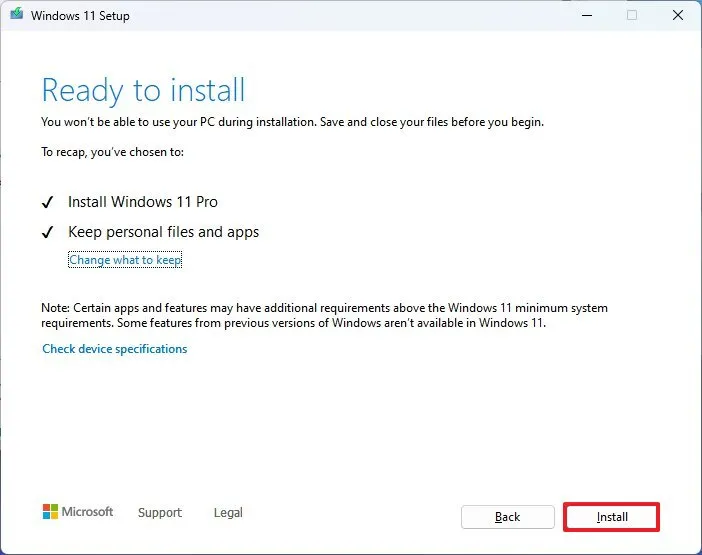
- Click the Install button.
After you complete these steps, Windows Setup will proceed with the in-place upgrade to version 26H2 on your device.
How to install Windows 11 2026 Update from ISO file
Finally, you can also download the Windows 11 version 26H2 ISO file to upgrade your system.
To upgrade to Windows 11 2026 Update using the official ISO file, use these steps:
- Open this Microsoft support website.
- Select the Windows 11 option under the "Download Windows 11 Disk Image (ISO)" section.
- Click the Confirm button.

- Select the installation language.
- Click the Confirm button.
- Click the "64-bit Download" button to save the ISO file to the computer.

- Right-click the image file and select the Mount option.
- Quick tip: If you don't see the option, another tool is likely managing the ".iso" files.
- Select the virtual drive from the left navigation pane (if applicable).
- Double-click the setup.exe file to manually launch the setup.
- Click the Next button.
- Click the Accept button to agree to the terms.
- Click the Install button.
Once you complete the steps, the computer will upgrade to the 2026 Update, preserving your files, settings, and apps.
FAQs about installing Windows 11 2026 Update
These are common questions regarding the installation of version 25H2.
Do I need to reinstall Windows 11 to get version 26H2?
If your computer is already running Windows 11 version 25H2 or 24H2, the 26H2 update will install as a cumulative update without requiring reinstallation. If you're on version 23H2 or older, you'll need to upgrade to version 25H2 first, which does require a complete reinstall.
What are the safest ways to install the latest update?
Microsoft recommends waiting for "Windows Update" to offer the upgrade automatically. If you don't want to wait, you can use the Installation Assistant, the Media Creation Tool, or download the official ISO file.
Will the upgrade process delete my files or apps?
No, if you upgrade using Windows Update, Installation Assistant, or the ISO setup, your files, apps, and settings should remain on the computer. However, it’s always recommended to back up your data before starting the upgrade.
If you perform a clean installation, the process will delete everything on your device.
More resources
Explore more in-depth how-to guides, troubleshooting advice, and essential tips to get the most out of Windows 11 and 10. Start browsing here:
- Windows 11 on Windows Central — All you need to know
- Windows 10 on Windows Central — All you need to know

Join us on Reddit at r/WindowsCentral to share your insights and discuss our latest news, reviews, and more.