Enjoy our content? Make sure to set Windows Central as a preferred source in Google Search, and find out why you should so that you can stay up-to-date on the latest news, reviews, features, and more.
As we approach the end of 2025, it's a good moment to look back at the many improvements Windows 11 has received throughout the year, most of which arrived through monthly cumulative updates.
Some changes introduced entirely new capabilities, such as multi-stream support for cameras, smaller Taskbar icons, Quick Machine Recovery, multiple clock support, Administrator Protection, the Xbox Full Screen Experience, and the addition of battery percentage. Others enhanced existing features, including the option to disable the Drag Tray, a redesigned Start menu layout, better dark mode consistency in File Explorer, and more.
In this guide, I'm highlighting my favorite features and improvements that became available for Windows 11 in 2025.
Windows 11 features recap for 2025
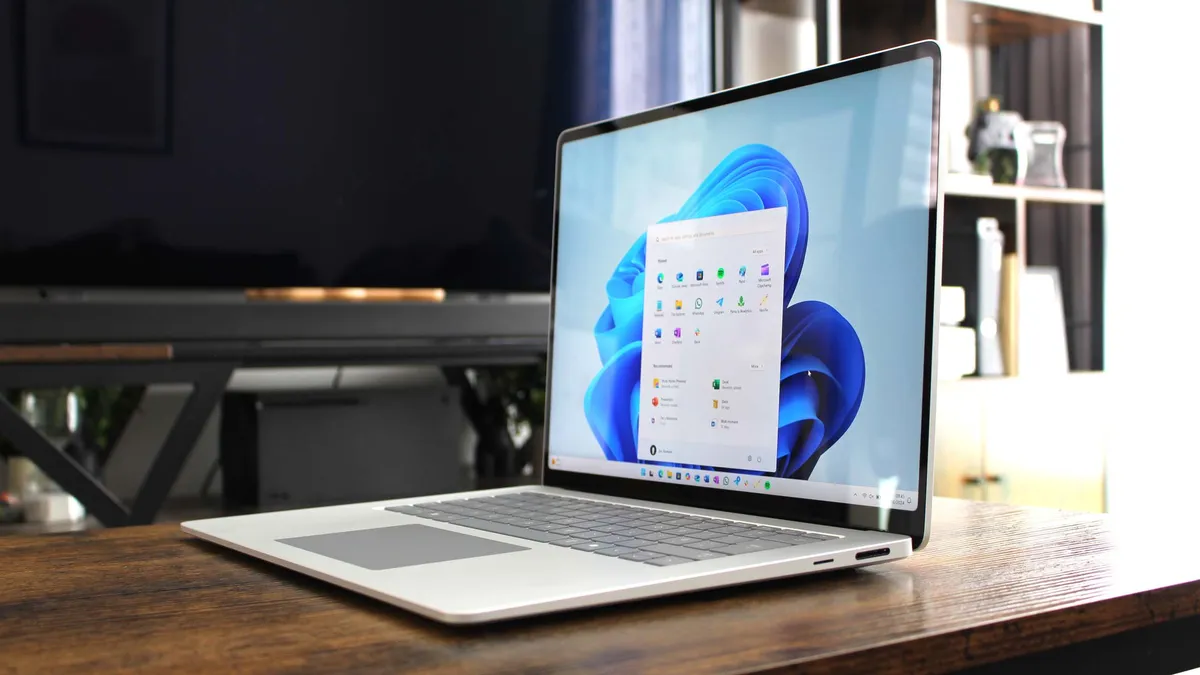
Microsoft rolls out features and changes gradually, and even though improvements to this were announced throughout the year, some may still be rolling out to users.
The following list is presented in no particular order and reflects only my personal perspective.
1. Consistent dark mode in File Explorer
In 2025, Microsoft finally gave some much-needed attention to the dark mode experience in File Explorer.
Dark mode across the operating system has long felt inconsistent and unfinished, especially in File Explorer. Recent updates have expanded dark mode to additional surfaces, including copy, move, delete, and error dialogs.

This is in addition to refreshed progress bars, charts, and confirmation prompts. However, these changes still do not extend to "Folder Options" and several other legacy elements.

While these improvements were well received, they didn't roll out as planned. After installing the December 2025 non-security update, Microsoft confirmed a bug that caused a large white flash when loading files in dark mode. However, this issue has now been fixed with the release of the December 2025 Security Update.
2. Redesigned Start menu
Microsoft also introduced a redesigned Start menu layout that combines the Pinned, Recommended, and All sections into a single scrollable interface.
The frame is larger than before, which some users found excessive, but it now dynamically adjusts based on screen resolution.
The updated layout allows up to eight pins per row. A new toggle at the top-right lets you show or hide the mobile sidebar when a mobile device is linked to your computer.

The "Recommended" section can now show up to six app and file recommendations. You can disable it entirely from Start settings by turning off all "Recommended" options.

The All section now groups apps by category by default, but you can switch to a grid or the legacy list.
Since the Start menu design has changed, Microsoft updated the Start settings page by removing the "Layout" option and rearranging the remaining controls.
3. Redesigned Widgets board
Windows 11 also received a redesigned Widgets board with a new settings page that integrates directly with the feature instead of using a separate overlay.

All previous settings remain available, and you can choose which board opens by default.
The layout now includes a navigation pane that makes switching between boards easier.
When weather is displayed on the Taskbar, selecting it opens the default dashboard rather than the last active board.

The "Discover" board has been refreshed with a Copilot-powered experience, and its interface aligns with the visual design used in Copilot's Discover page.
4. Customizable Lock Screen widgets
Customizable Lock Screen widgets are one of my must-include picks for 2025. Until now, Windows 11 has allowed widgets on the Lock Screen but has not provided a way to personalize them.
The new "Widgets" section under "Personalization" lets you add or remove widgets and configure supported ones.

If you're unsure which widgets to use, the system can suggest widgets automatically for unused slots using the "Suggest widgets for your lock screen" option.
5. Granular hardware indicator placement
Although relocating the Taskbar is still not possible, Windows 11 added a new "Position of on-screen indicators" setting, allowing you to move hardware indicators like brightness, volume, and airplane mode to the bottom center, top left, or top center of the screen.

You'll find this option at the bottom of the "Notifications" page under the "System" category of the Settings app.
6. Introducing Virtual Workspaces
Virtual Workspaces is technically not a feature, but a new page in the Settings app under the "Advanced" section that centralizes virtualization controls, eliminating the need to use the legacy Windows Features dialog.

From this page, you can enable or disable:
- Containers
- Guarded Host
- Virtual Machine Platform
- Windows Hypervisor Platform
- Windows Sandbox
- Hyper-V GUI Management Tools
- Hyper-V Module for Windows PowerShell
- Hyper-V Hypervisor
- Hyper-V Services
7. Taskbar with smaller icons and new share tool
Although you still can't adjust the Taskbar's height, Windows 11 gained an option to use smaller icons.
The goal is to fit more app buttons into the available space when the Taskbar becomes full, preventing items from moving into the overflow menu.
The "Taskbar" settings page lets you choose "Always," "Never," or "When taskbar is full."

Microsoft also added a new sharing shortcut. If you right-click an app icon with recent files, such as Notepad, you can use the "Share" option to open Windows Share and send the file to compatible apps.

8. Drag Tray optional disable option
Microsoft added an option to disable "Drag Tray" from the "Nearby Sharing" settings page.

Drag Tray is the flyout that appears when you drag a file to the top of the screen, allowing you to drop it into an app or choose "More" to open Windows Share.
While useful, not everyone likes it, and the lack of a disable option annoyed many users. This small change will be appreciated by those who prefer a simpler workflow.
9. Notification Center new clock with seconds
Microsoft introduced the ability to display a large clock with seconds inside the Notification Center, making quick glances more convenient.
You can also display multiple clocks in this area.

The main toggle appears under "Show time in Notification Center" in the "Date & time" settings. The controls for secondary clocks are under "Show time and date in the System tray."

Windows 11 also added multi-monitor support for Notification Center, so the flyout opens on the monitor where you clicked the date and time area in the System Tray.

10. Windows Hello elements redesign
Windows Hello also received an interface refresh in 2025. As part of the improvements, Microsoft rolled out visual changes for the Sign-in screen for devices using Windows Hello Face, PIN, or Fingerprint.

For instance, when you access the screen to sign into your account, the system now displays an animation with the icon representing the sign-in method to make it easier to understand.

The sign-in dialog to allow elevation or using a passkey has also been updated with a new design for entering and recognizing your credentials.
11. Passkeys with third-party support
Another welcome addition this year is support for third-party passkey providers.
You can now store and use passkeys from supported apps like 1Password directly through Windows Hello.

If you already use a compatible provider, you’ll find the toggle under "Advanced options" on the "Passkeys" settings page.
12 Administrator Protection security feature
Administrator Protection is a new security feature you can enable through Group Policy or Intune, meaning it’s primarily intended for the "Pro" edition, though it can technically be enabled in the "Home" edition too through the Registry.
When enabled, the feature adds an authentication prompt whenever an action requires elevation.
It follows the Principle of Least Privilege, treating administrator accounts as standard until the user grants just-in-time elevation.
When elevated, the system creates an isolated administrator token tied to a separate account that exists only for the duration of the task and is deleted immediately afterward.

To enable this feature, select the "Admin Approval Mode with Administrator protection" option for the "User Account Control: Configure type of Admin Approval Mode" policy located on Computer Configuration > Windows Settings > Security Settings > Local Policies > Security Options.
13. Quick Machine Recovery for fast system repair
One of the most significant features released in 2025 is Quick Machine Recovery, a system designed to repair the operating system when it fails to boot.
When a fault is detected, the system starts in Windows Recovery Environment (WinRE) and sends diagnostic data to Microsoft. If a fix is available, it will download and apply it automatically.
If no solution is found on the first attempt, the user is presented with additional troubleshooting options.
Quick Machine Recovery is enabled by default on Windows 11 Home and Pro, as long as the device isn't managed.

The feature can also be controlled through the "Quick Machine Recovery" page on the "Recovery" settings section. On that page, you can also change the "Automatically check for solutions" settings so that if no solution is found, the system will restart automatically to continue searching for solutions through Windows Update.
14. Windows Backup with local file transfer
Although Windows Backup has existed for years, Microsoft updated it in 2025 with support for transferring files to a new PC over the local network without needing to sync to the cloud first.
While this might sound similar to Windows Easy Transfer, the intention is different. You can't migrate from one desktop to another. Instead, it works only during the initial setup of a new device, and only for devices that were never backed up to the cloud using a Microsoft account.
For example, if you have a Windows 10 or 11 device using a local account and you set up a new computer, you'll see an option to start a local file transfer.

To complete the process, launch Windows Backup on the old device and pair it with the new computer.
15. Xbox Full Screen Experience for handheld devices
Another major addition is the Xbox Full Screen Experience for handheld gaming devices.
This mode transforms Windows 11 into a controller-friendly, console-like interface for PC gaming, similar to the Xbox dashboard.
The system hides the traditional desktop and loads a full-screen version of the Xbox app, minimizing resource usage by disabling Windows Explorer and stopping unnecessary background processes.
Initially available on the ASUS ROG Ally and Ally X, the experience expanded to additional handheld devices in 2025, and Microsoft plans to bring it to more form factors.

If you own a handheld PC, you can enable it from Settings > Gaming > Full Screen Experience.
16. Battery percentage in Taskbar
Microsoft introduced a simple but long-requested option. The ability to show battery percentage directly on the Taskbar.
Although the operating system always displayed the battery icon, it never natively supported showing the percentage. Manufacturers often provided their own tools to make up for the omission, but that’s no longer necessary.
The setting is not enabled by default. You'll find the "Battery percentage" toggle on the "Power & battery" page if you're using a laptop or tablet.

Microsoft also introduced new battery iconography across the system. The updated icons reflect different states more clearly, including green, yellow, red, black, and white variations.

The green icon indicates charging and a healthy battery. Yellow appears when running on battery in energy-saving mode. Red warns of low charge, and black or white appears depending on whether you're using light or dark mode.
17. Camera with multiple stream support
Finally, one new feature that didn't receive the attention it deserves is the ability for multiple apps to access the same camera feed. It may not be a significant feature for many people, but it's a welcome change for streamers and others who rely on multi-stream support.
The new multi-stream support is part of the recently added "Advanced camera options" page, which includes additional camera features.
The option is known as "Allow multiple apps to use camera at the same time," and it's located on Settings > Bluetooth & devices > Cameras, and then select your camera and access the advanced settings.

In addition, you'll find the "Media type" feature to set the preferred camera resolution and frame rate, and the "Turn on basic camera" option lets you turn off advanced settings and use the basic functionality for troubleshooting.
One more thing to point out is that I'm only highlighting the improvements that are intended for all devices since Microsoft has also released other features and changes focusing on AI for Copilot+ PCs.
Do you have a favorite Windows 11 feature released in 2025? Let me know in the comments.
More resources
Explore more in-depth how-to guides, troubleshooting advice, and essential tips to get the most out of Windows 11 and 10. Start browsing here:
- Windows 11 on Windows Central — All you need to know
- Windows 10 on Windows Central — All you need to know

Follow Windows Central on Google News to keep our latest news, insights, and features at the top of your feeds!